GLOSSARY
Effie Screens
There are multiple different screens in Effie that help with all aspects of deal management. Follow this guide to get an understanding of each screen.
Lead Generation
Get leads and contacts that don't know about you or your team to want to work with you and send you a deal for the first time.
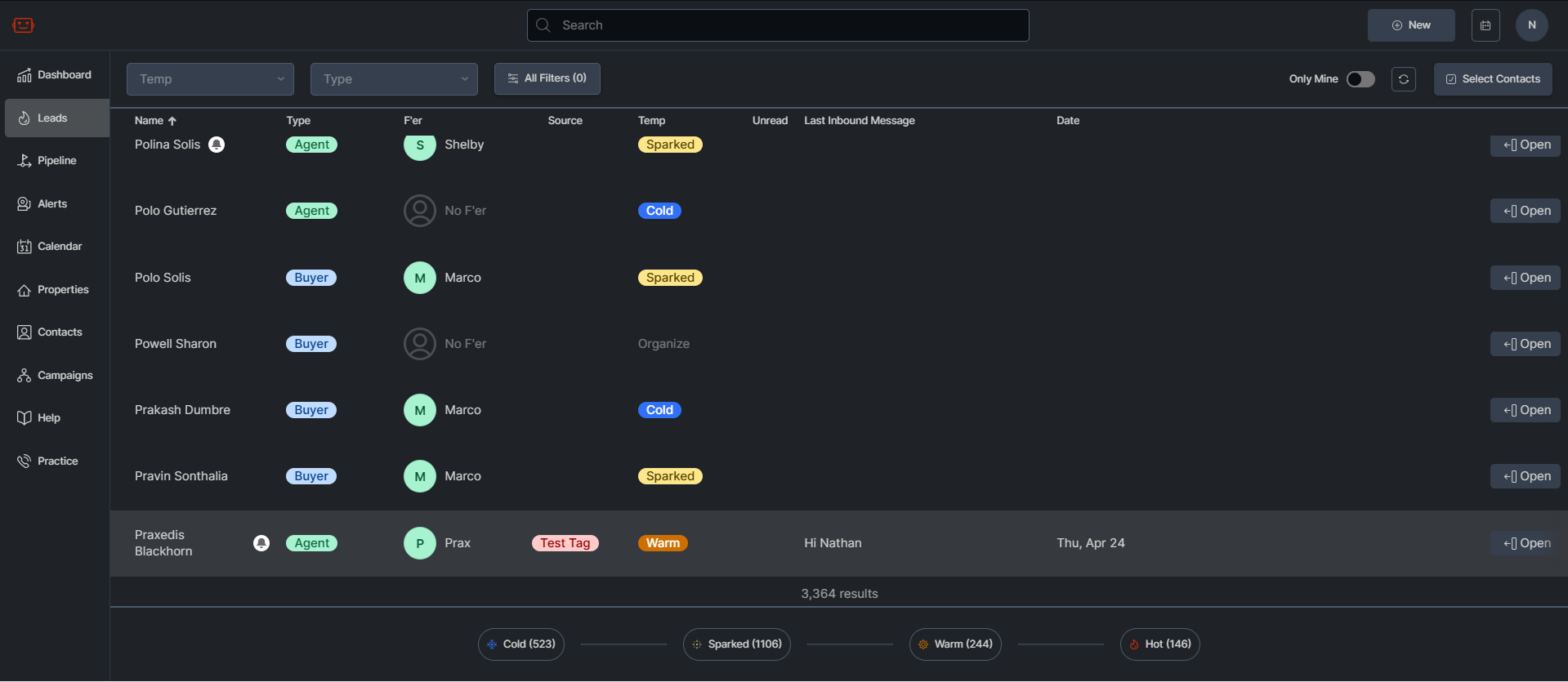
Move Leads Through the Temperature System to Get Deals
Categorize and nurture leads by changing their temperature (Cold, Sparked, Warm, Hot) using campaigns and direct engagement.
Manage Contact Information and Communication
View and update contact details, send texts, emails, make calls, and track conversations within the Contact Panel.
Track and Schedule Appointments
View, create, and manage appointments directly within the Appointments Tab to engage leads at the right time.
Deal Pipeline
A control center to manage all of your deals in one place as you move them closer to close, one step at a time.
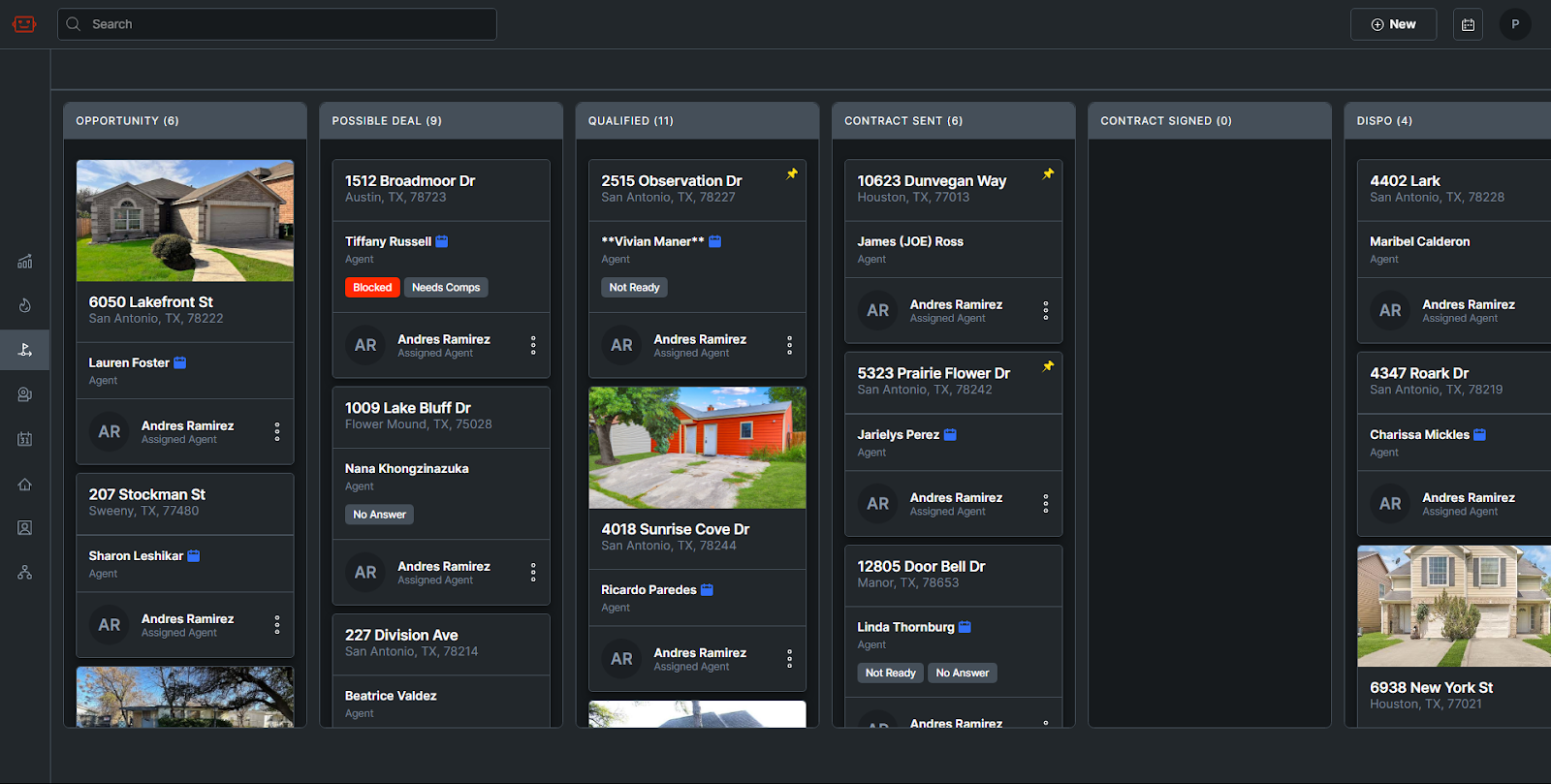
Move Deals Through Sales Stages
Progress deals through various stages, from Opportunity to Won, as they advance in the sales pipeline.
View and Manage Deal Information
Access and update deal details, including property info, contact details, financials, and comps.
Take Action on Deals
Send offers, schedule appointments, add campaigns, and communicate with contacts directly from the Deal Panel.
Qualify
A full-screen detailed view for each stage of a property.
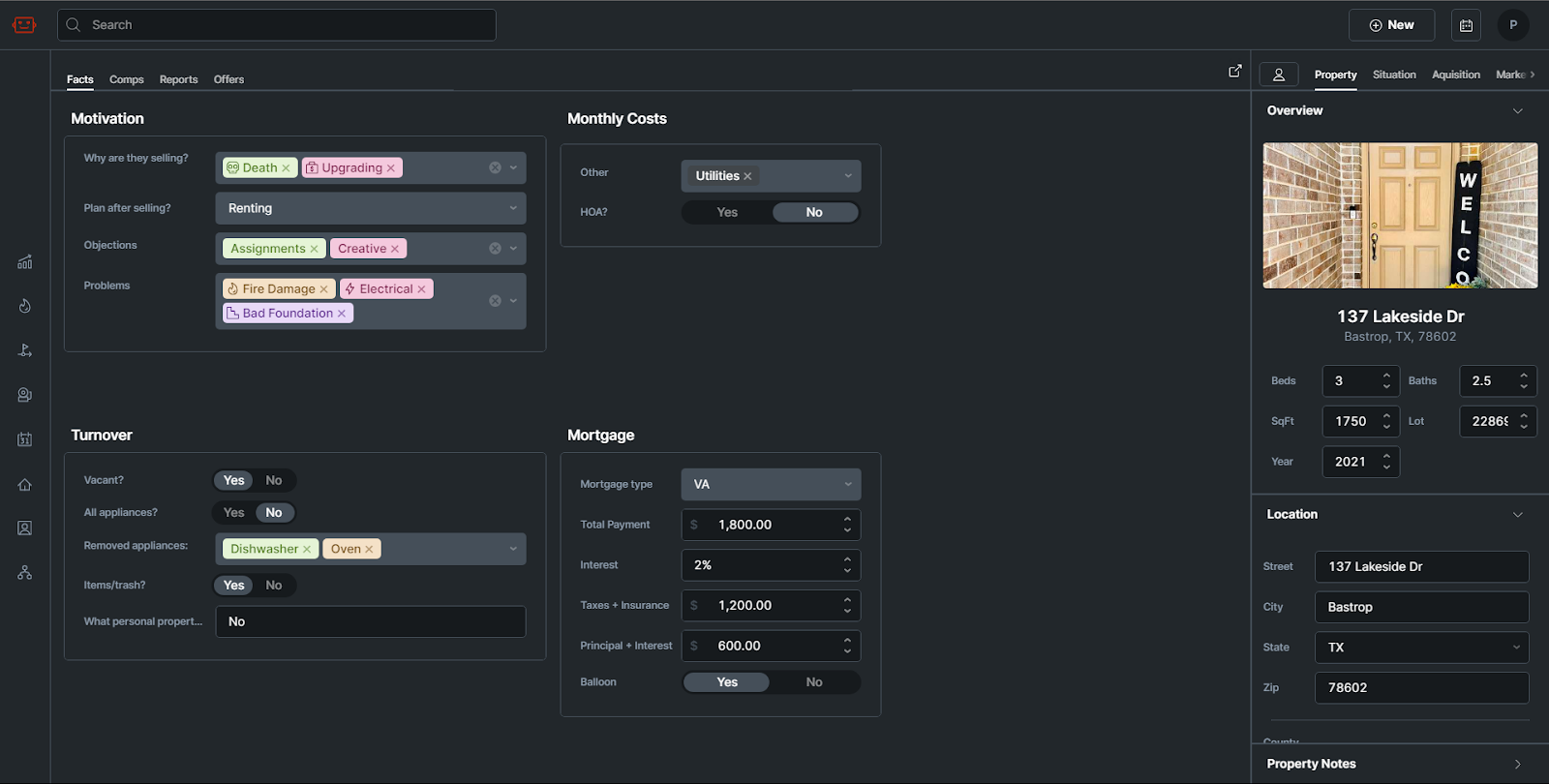
Analyze Property Details
View and update key property information, including photos, costs, mortgage details, and motivation, in the Facts tab.
Evaluate Comps & Market Data
Access, edit, or add comparable properties in the Comps tab to assess the property’s market value and investment potential.
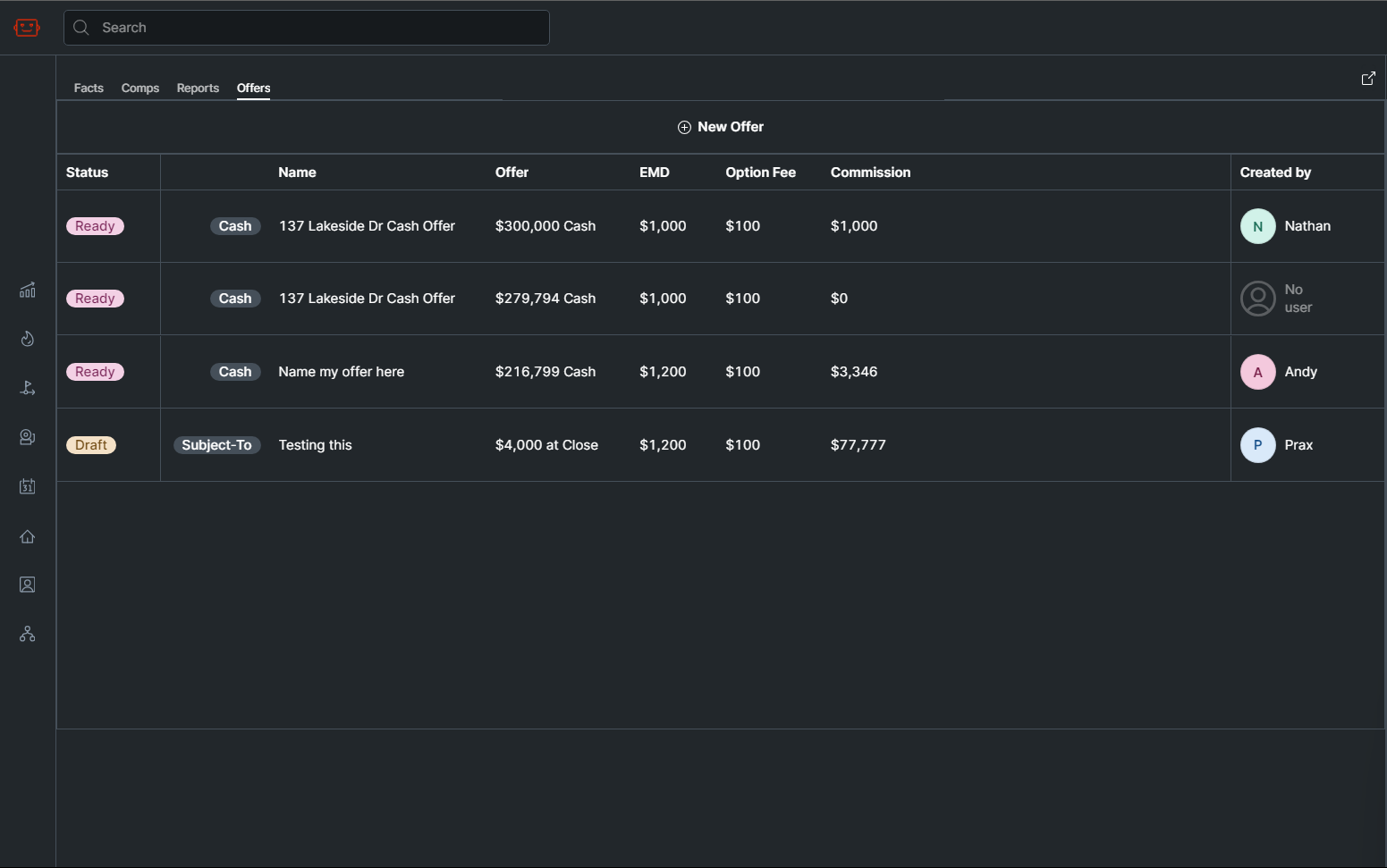
Generate & Send Offers
Run financial analyses, determine a Max Allowable Offer, and create and send offers directly from the Offers tab.
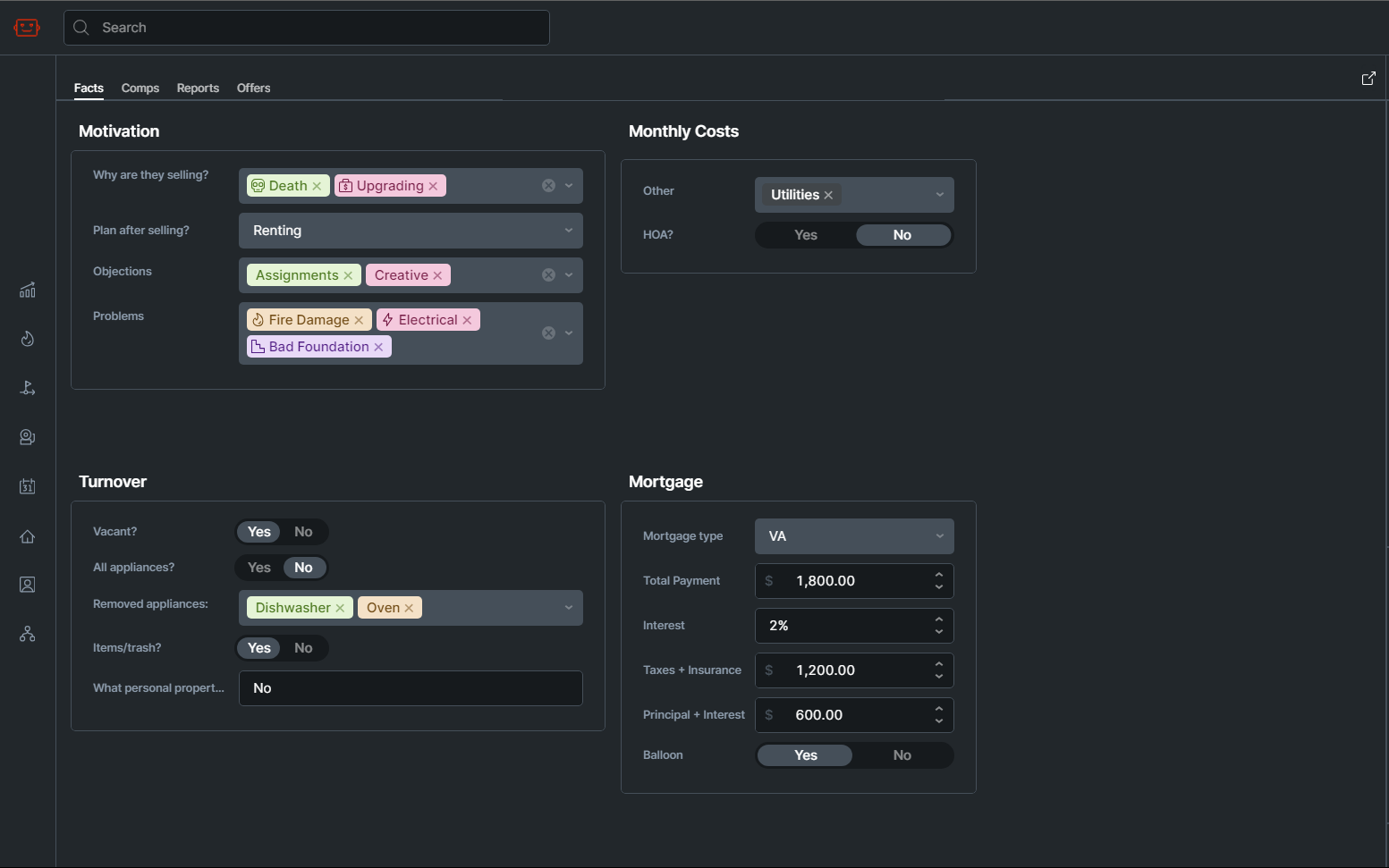
Facts
As details are gathered for a property, such as photos, costs, mortgage information and motivation, they are stored in this tab.
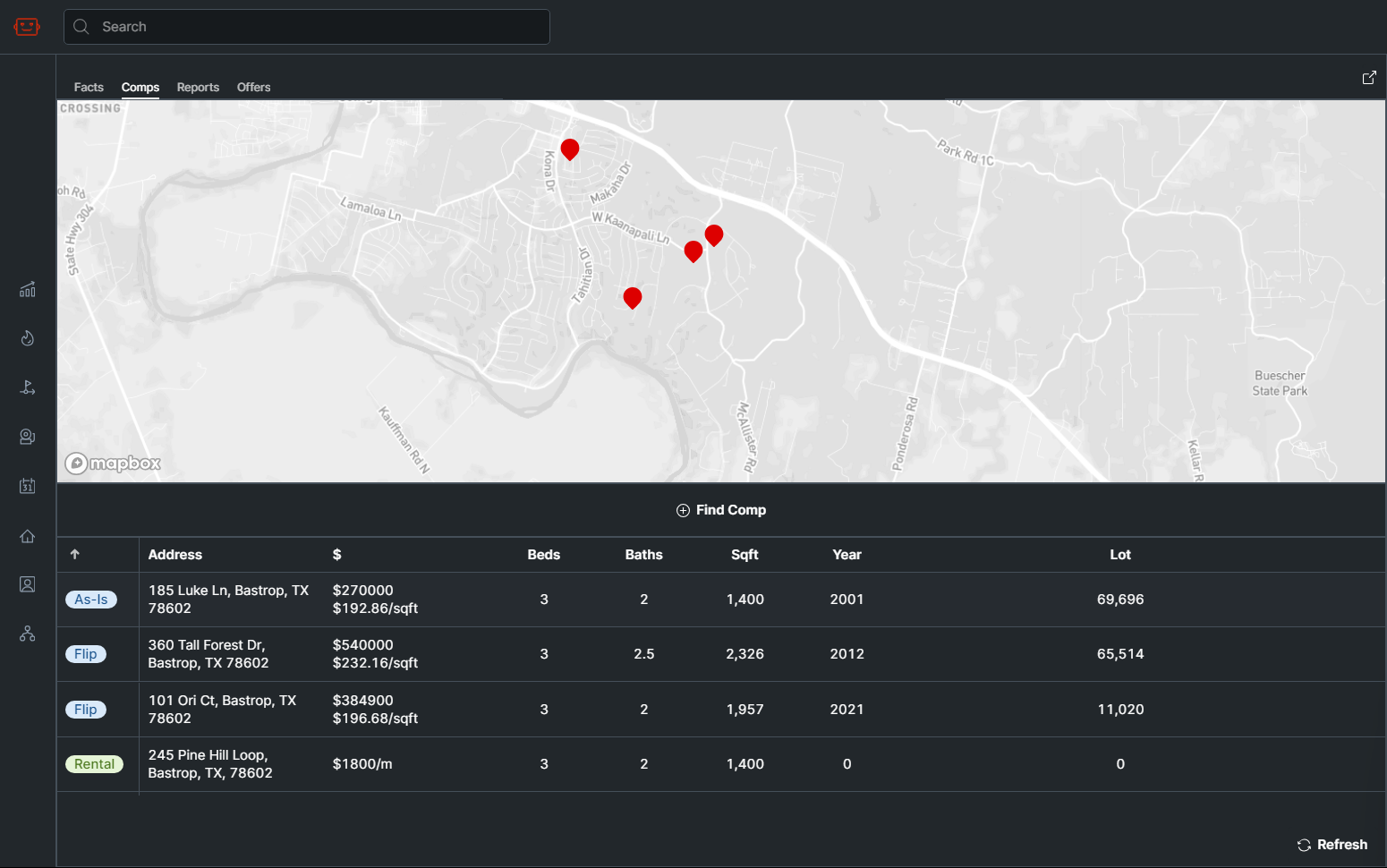
Comps
Comps for the property can be viewed, edited, or added here.
Offers
Once you have an MAO and numbers in mind, this screen allows you to create and send offers for the deal.