SCREEN OVERVIEW
The Qualify Screen
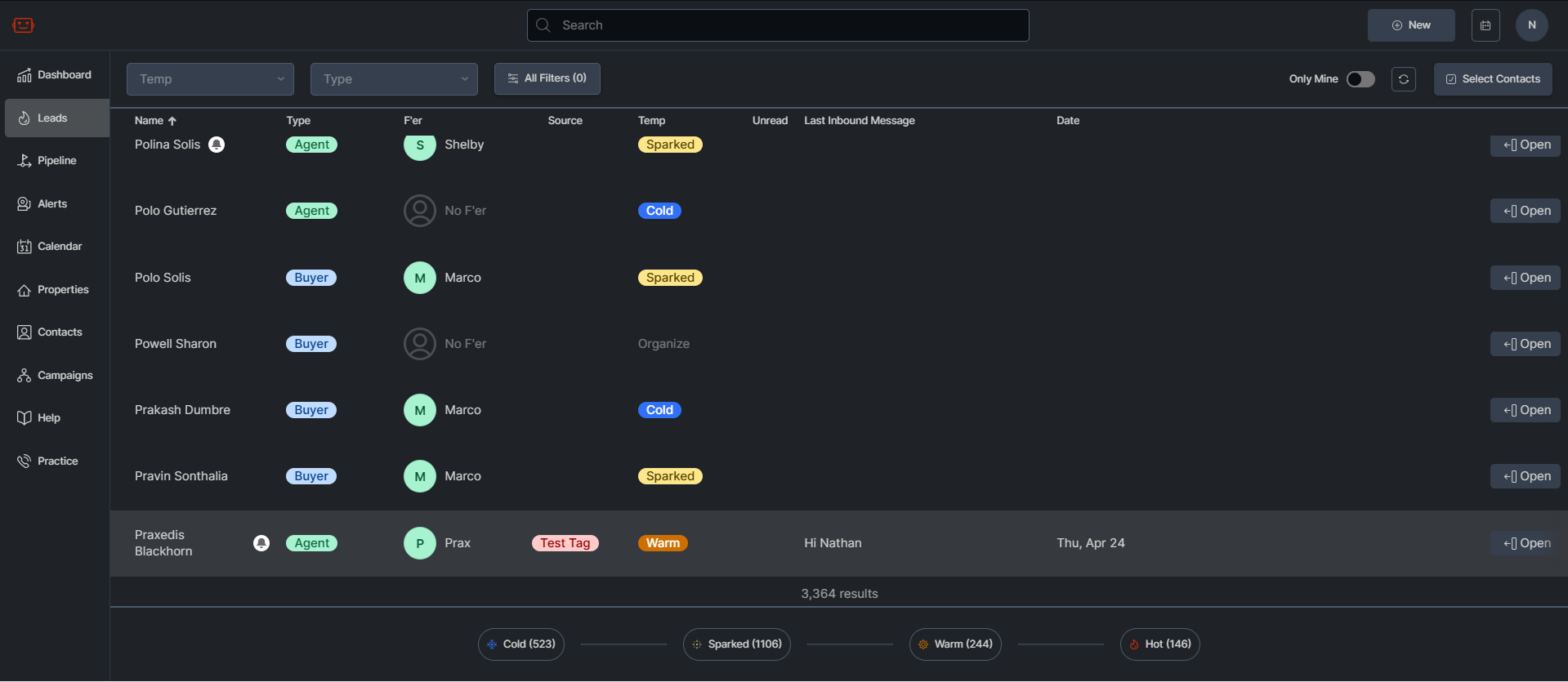
What is the qualify screen?
The purpose of this screen is to provide a full-screen detailed view for each stage of a property.
How does the screen work?
There are four tabs in the qualify screen allowing you to carry out various functions needed for a property all the way up to and including creating and sending an offer. The qualify screen also includes the info panel, a side panel created to allow you to quickly reference all details about a property.
Layout
-
Work Station
-
Info Panel
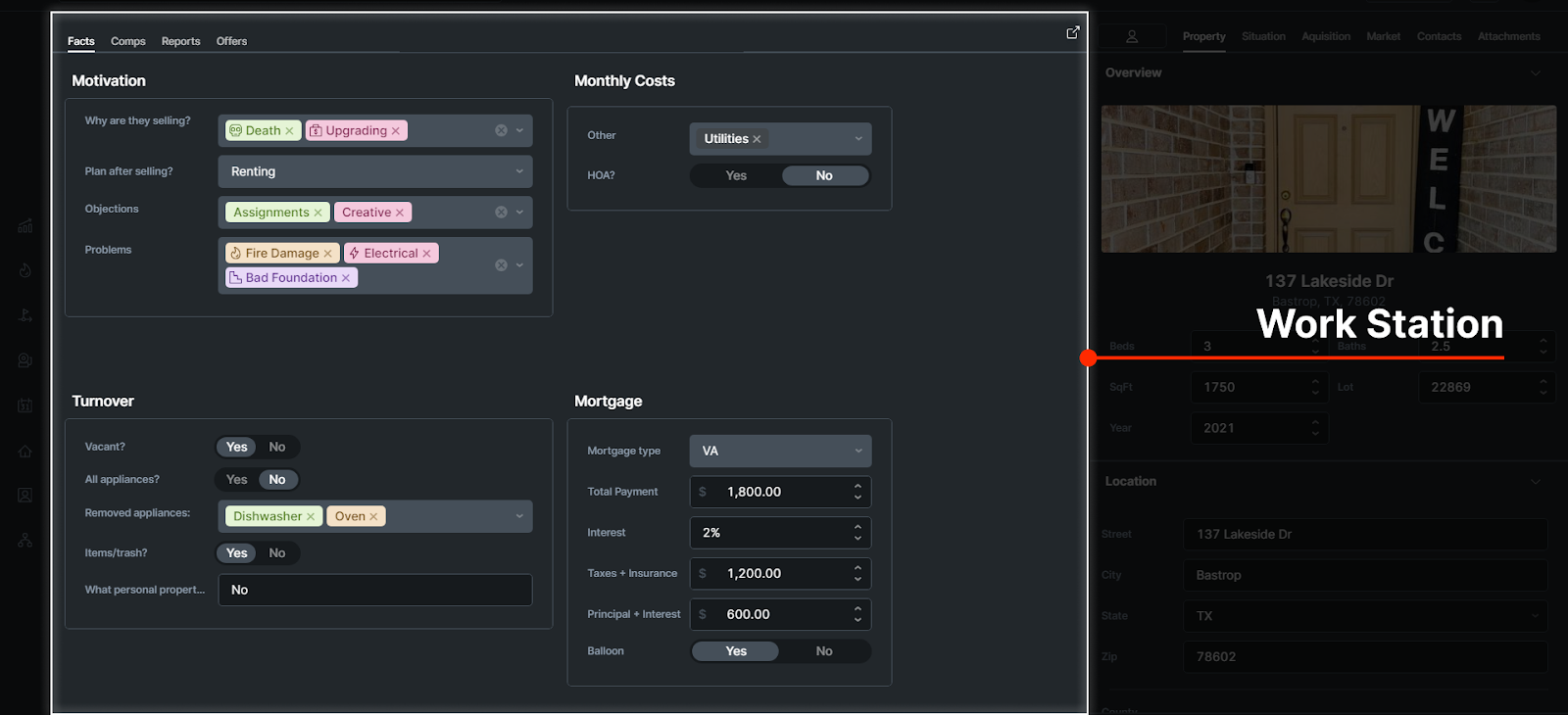
Work Station
This screen contains four tabs which each allow you different functions needed to make an offer on a deal.
Qualify Tabs
The tabs can be viewed at the top of the Work Station.

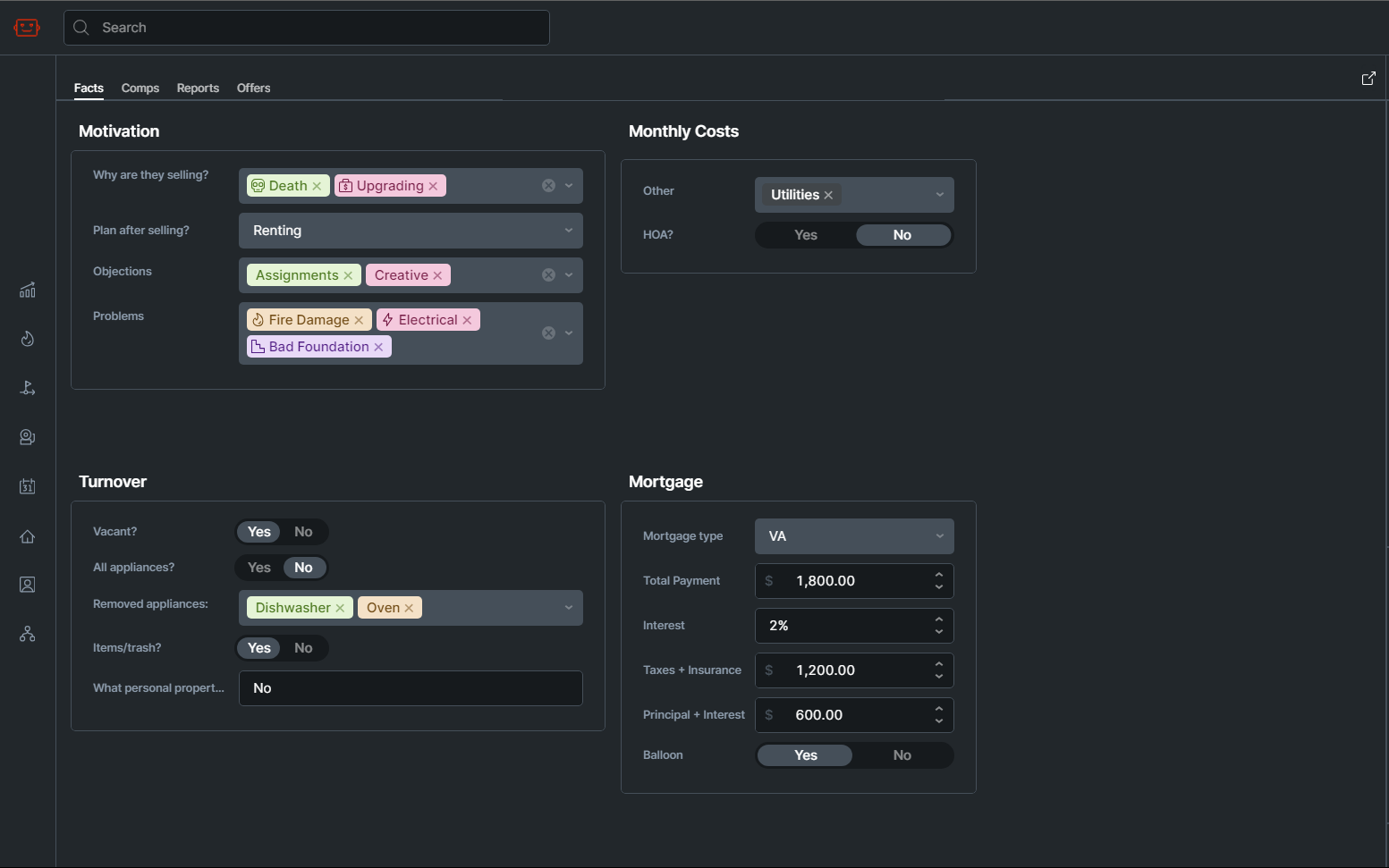
As details are gathered for a property, such as photos, costs, mortgage information, and motivation, they are stored in this tab.
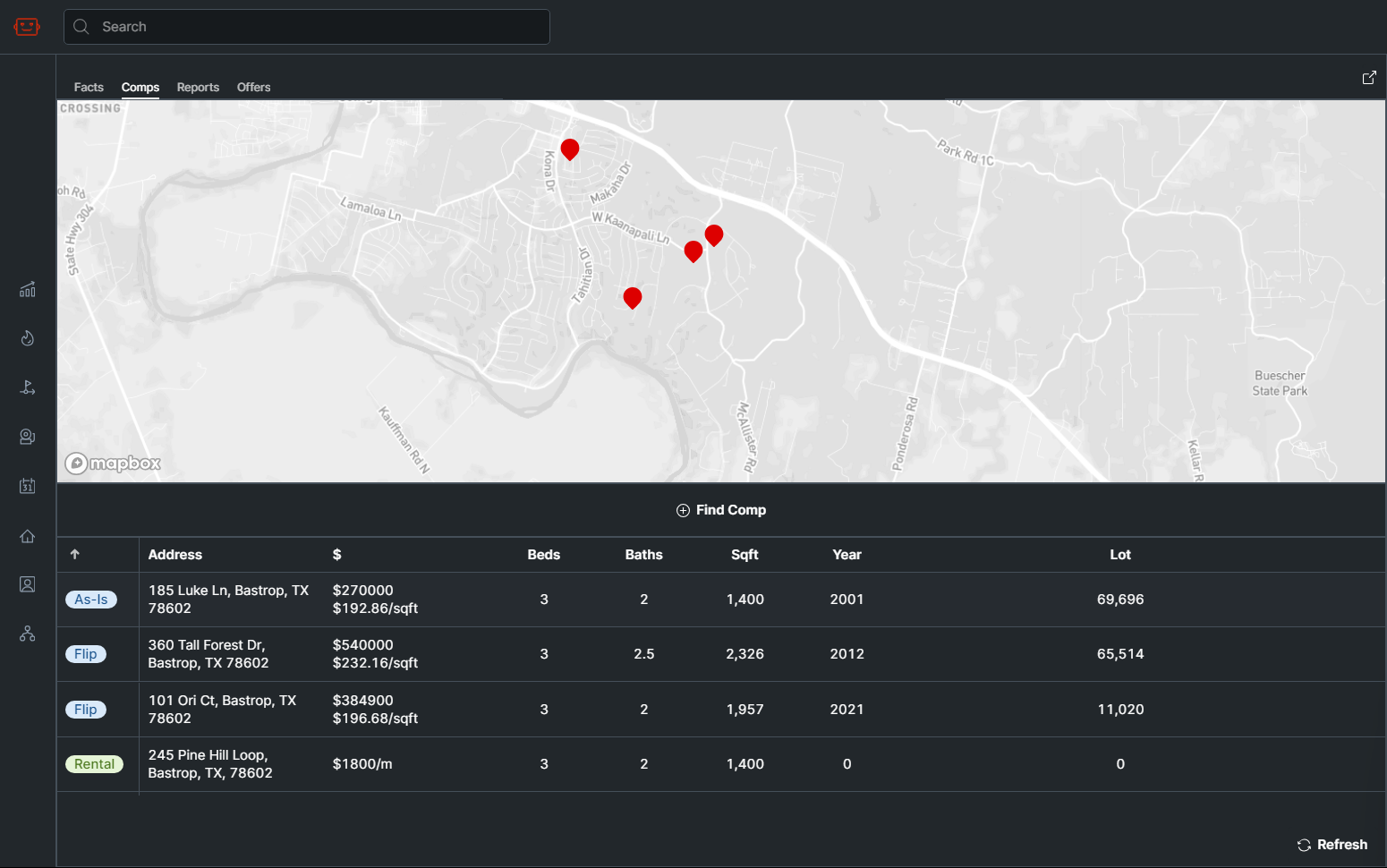
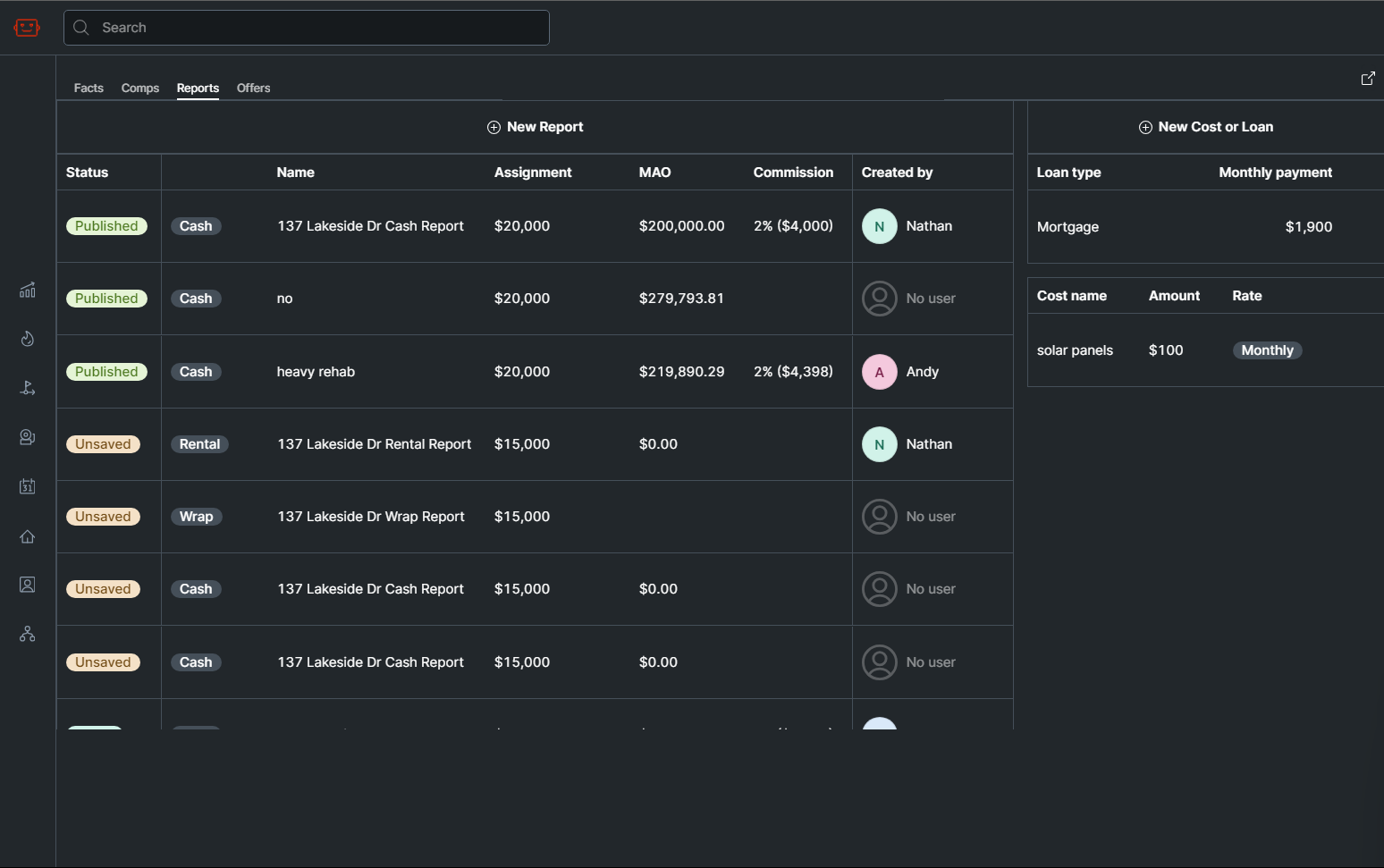
This is where you can run the numbers on a deal and generate a Max Allowable Offer, whether you want to measure cashflow, roi, or potential seller financing options.
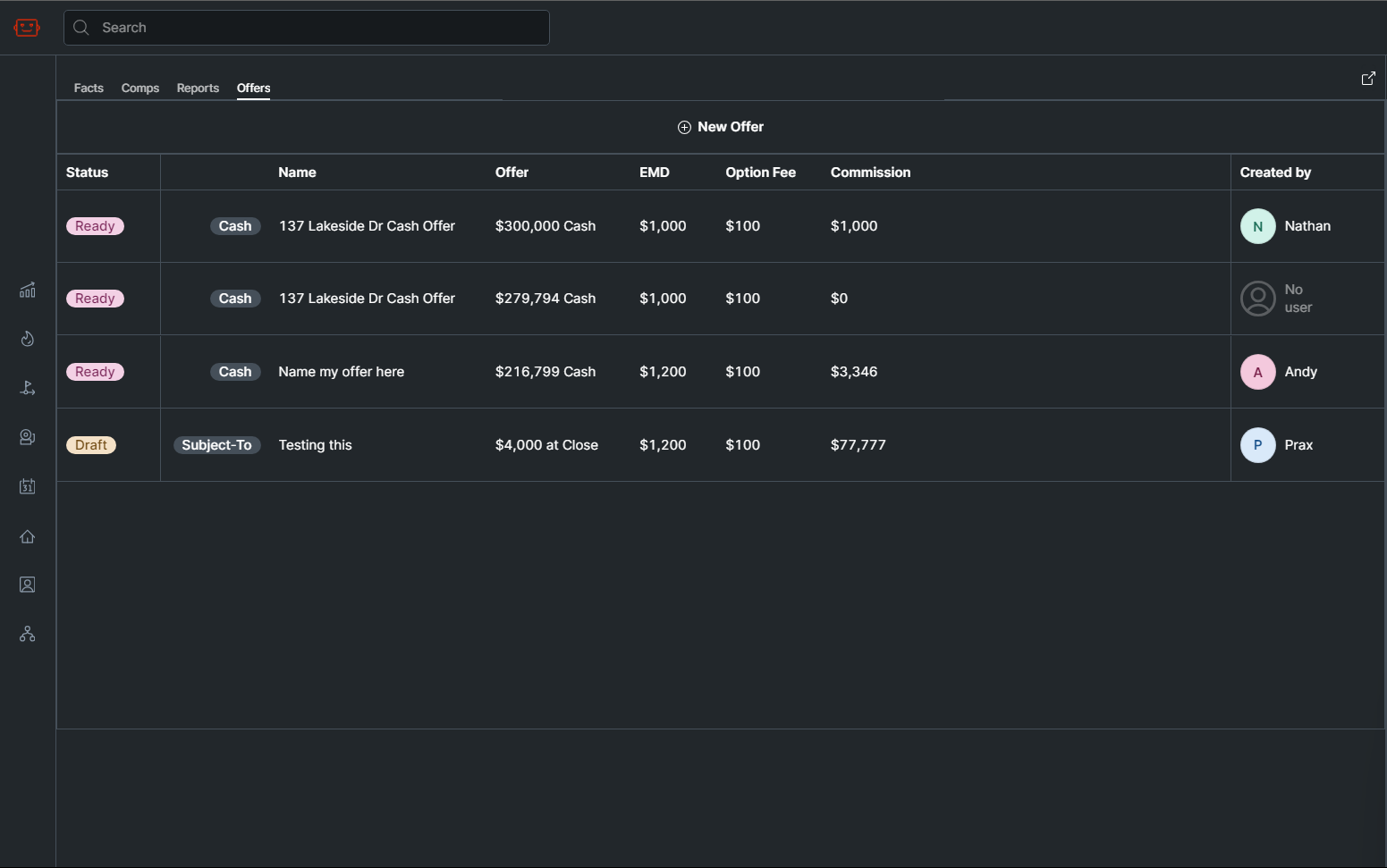
Once you have an MAO and numbers in mind, this screen allows you to create and send offers for the deal.
Offer Tab Articles
Info Panel
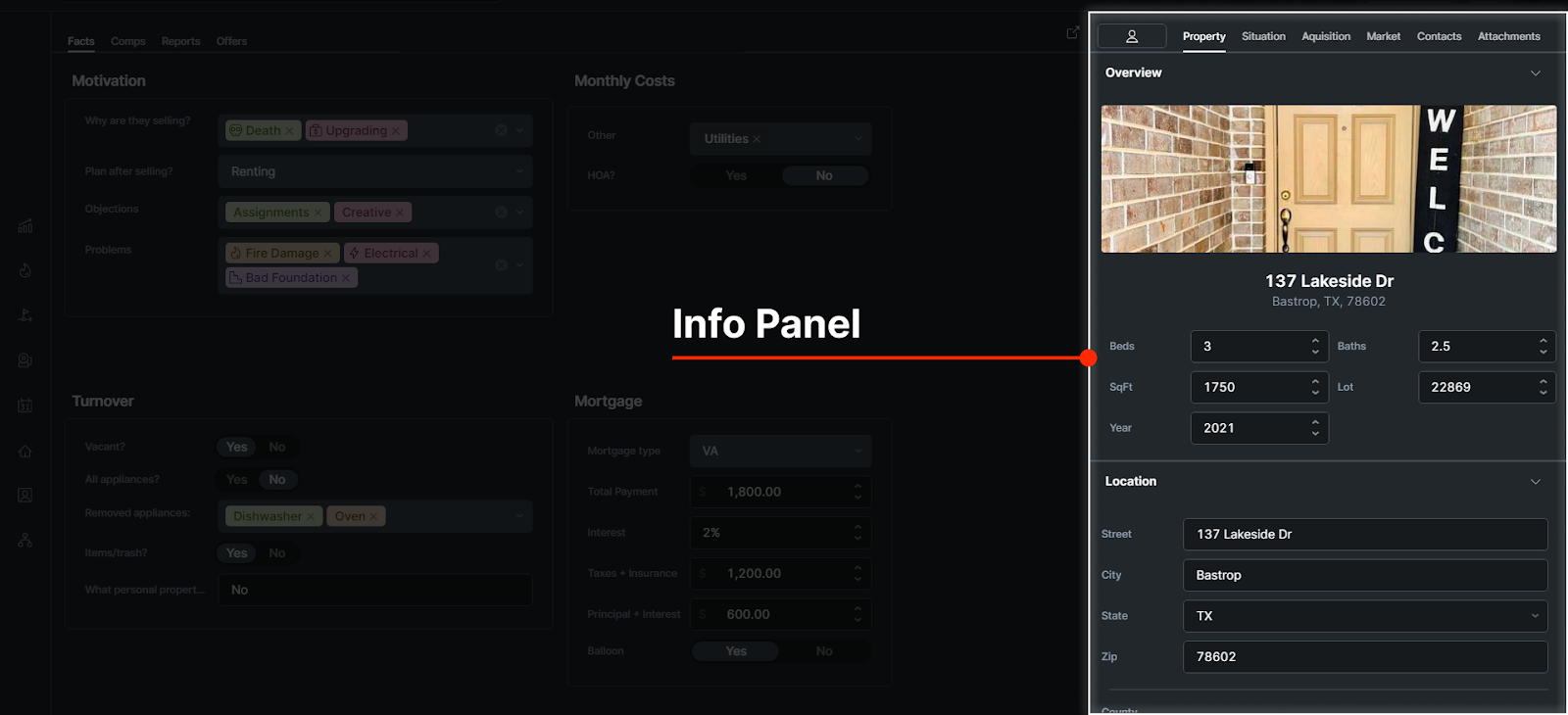
The info panel is a reference window where you can view any of the information on the property at any time.
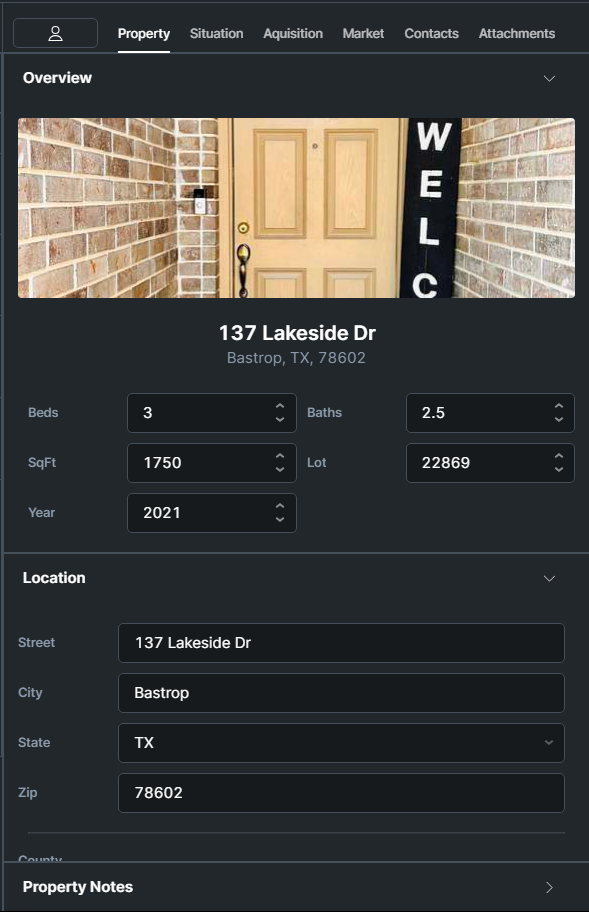
Use the Info Panel When:
- You’re putting together the numbers on a deal and you need to review the comps
- You’re looking for comps and need to remember the property’s condition
- You’re speaking to the agent and want to review market information about the property
Info Panel Tabs

There are several tabs in the info panel:
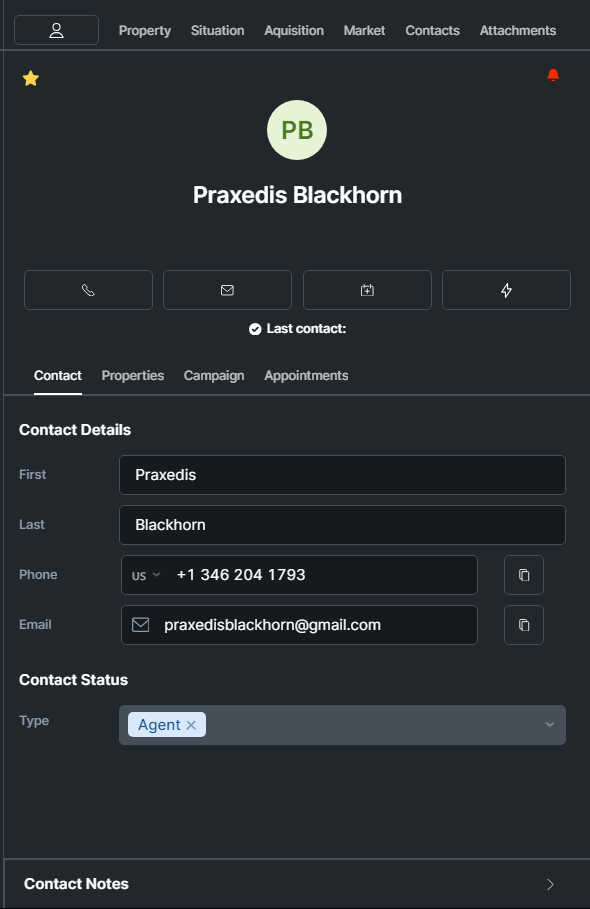
This tab opens up the contact panel which you can view in other screens. See contact information such as name, phone number and email, add contact notes, and view other properties connected to the contact.
In the contact tab, you can view and change various contact information.
- Click any field you want to edit, or click the copy buttons next to the phone or email to copy them to your clipboard.
- You can also change the contact’s type, and view properties the contact is the primary contact for, add or remove them from campaigns, and view, edit or create appointments
- Contact-specific notes can be left here which are visible by all team members.
- You can star a contact in the top left. A star means that they’re an important contact, or a VIP.
- A blue calendar icon means they have an appointment scheduled.
- A red bell icon next to the temperature means the contact is currently in an active campaign.
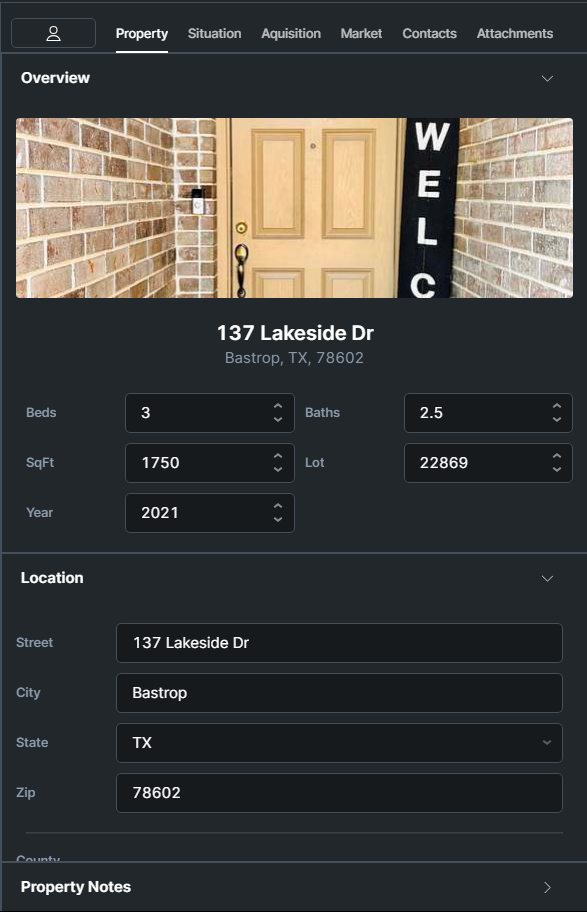
View facts about the property like beds and baths
This section allows you to view and edit more detailed location information for the property, including legal description and latitude / longitude.
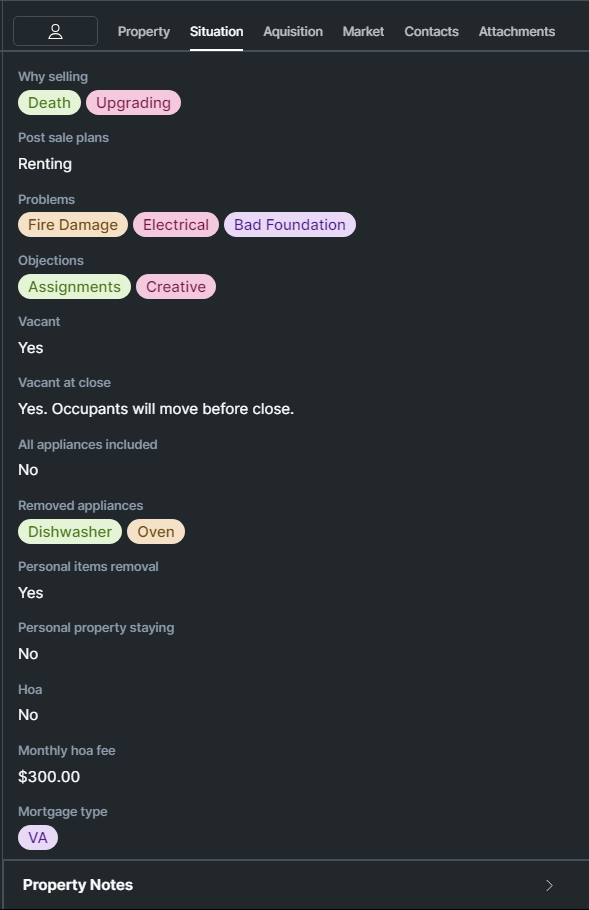
See all the information filled out in the Fact tab, like motivation, mortgage info, and more
See various information about motivation, property issues, mortgage info and more are filled out when speaking to the agent for the first time about the property.
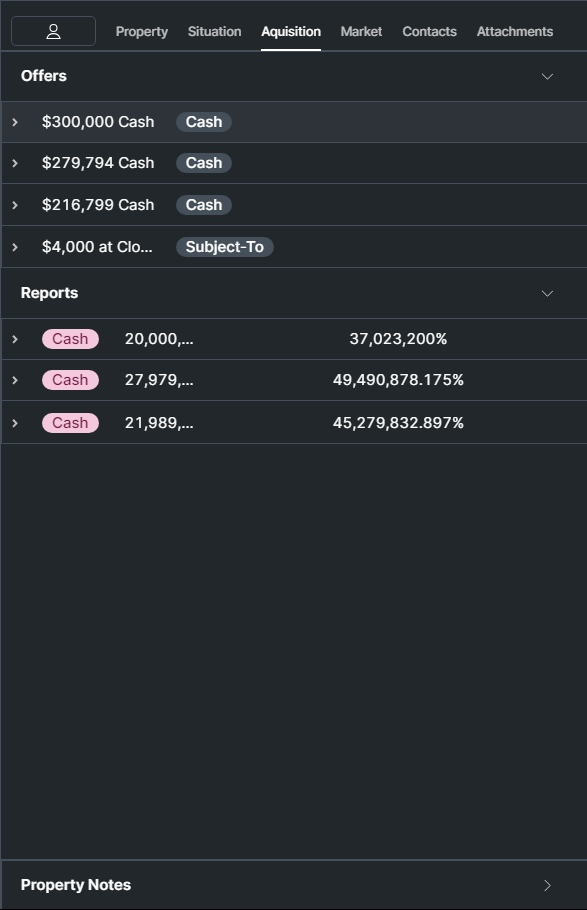
View all reports and offers that are saved or connected to the property
View and expand all reports created for the property as well as all offers created for the property and their statuses.
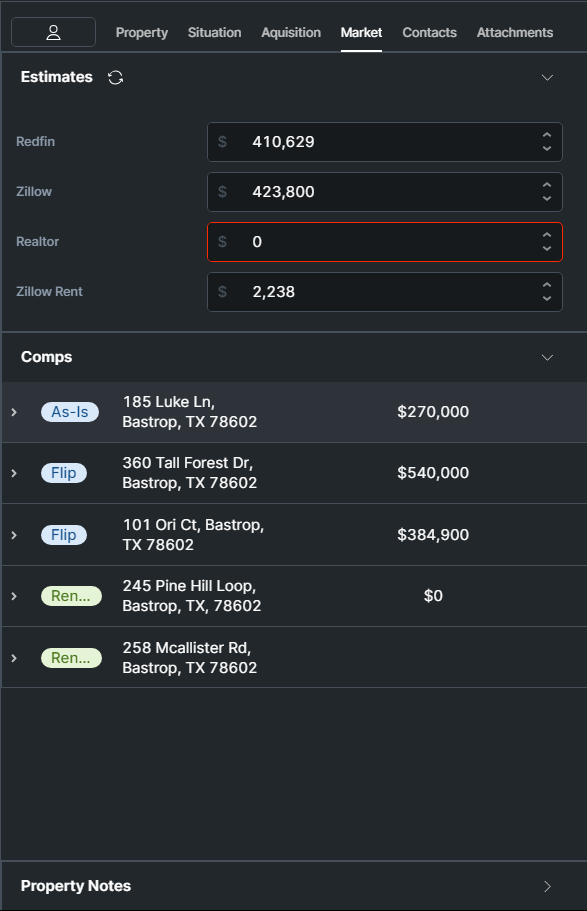
See the property value estimate on multiple sites as well as the comps attached to the property
See the property value estimate on multiple sites. Comps for the property can be viewed, edited, or added here.
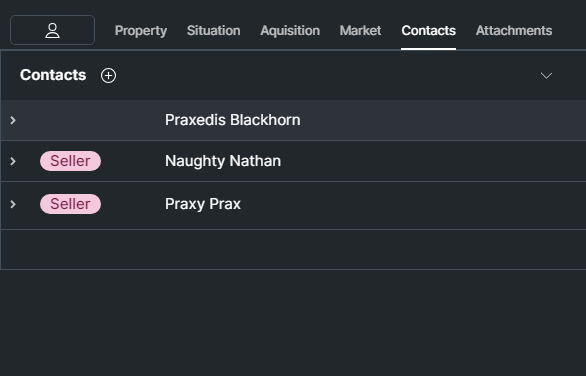
View contacts connected to the property and add a contact
Shows a list of all contacts that are connected in any way to the property. These can be buyers, sellers, or agents. Click on the dropdown arrow to expand the contact and view their information.

View any attachments such as images sent over text that are connected to the property
See any and all attachments connected to the property, such as mortgage statements, images that have been texted by the agent, and more..