TUTORIAL
How to Add a Comp
What is the comps screen?
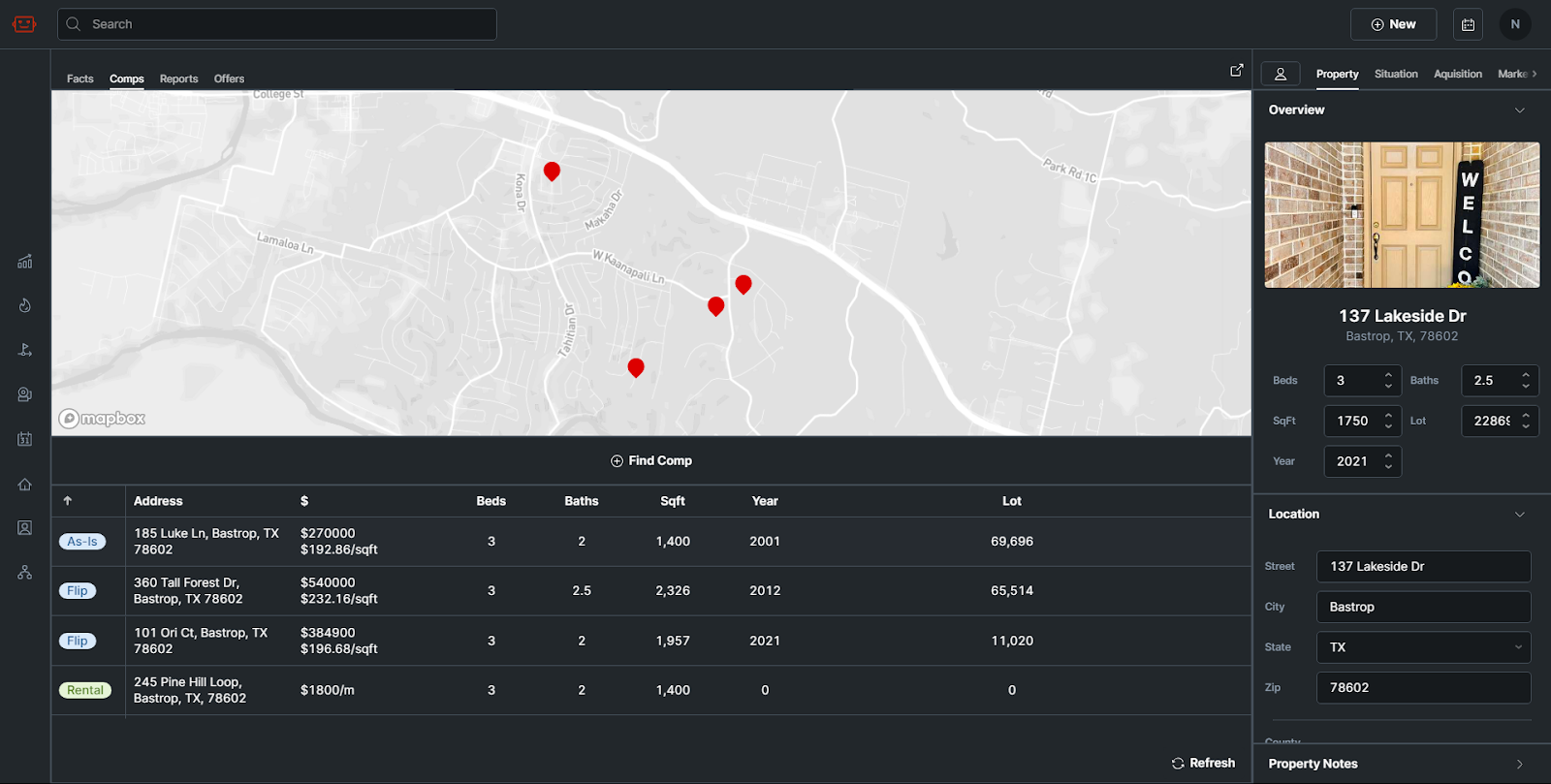
The comps tab is a screen inside Qualify where properties can be comped and comps are able to be viewed, edited, or deleted.
What is it used for?
These comps are used to identify an ARV for the property, which is later used when building a report and making offers.
Layout
- Map Panel
- Comps Panel
- Redfin Comping
Map
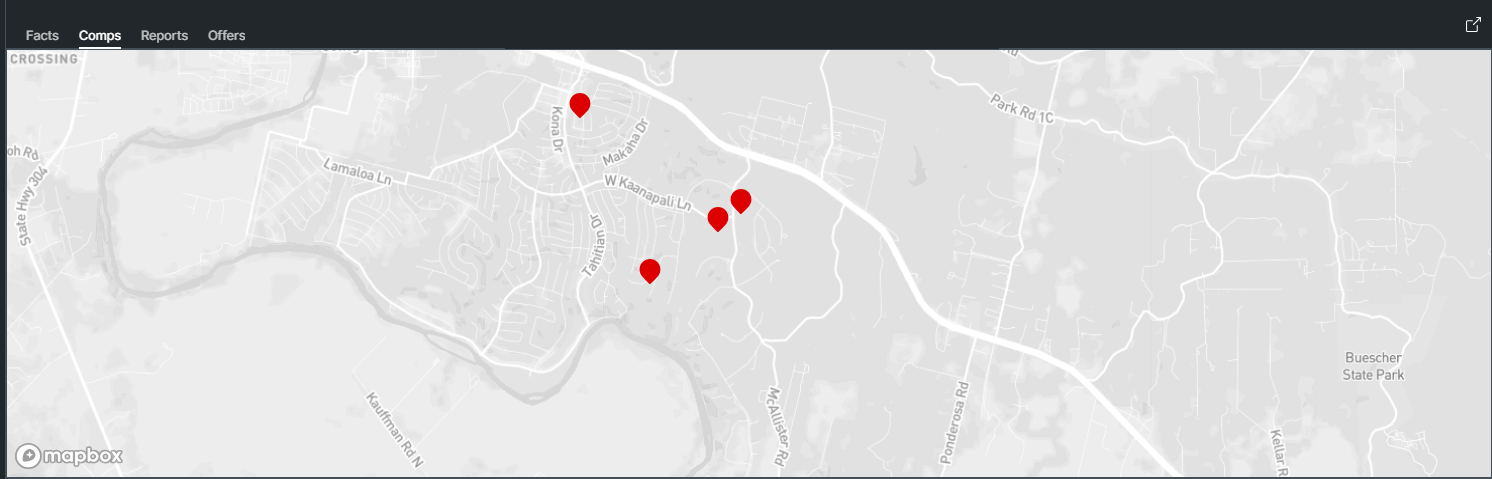
The map panel shows you the locations of the comps on the map as red dots.
Comps Panel
This panel shows a table of comps that have been added to the property.
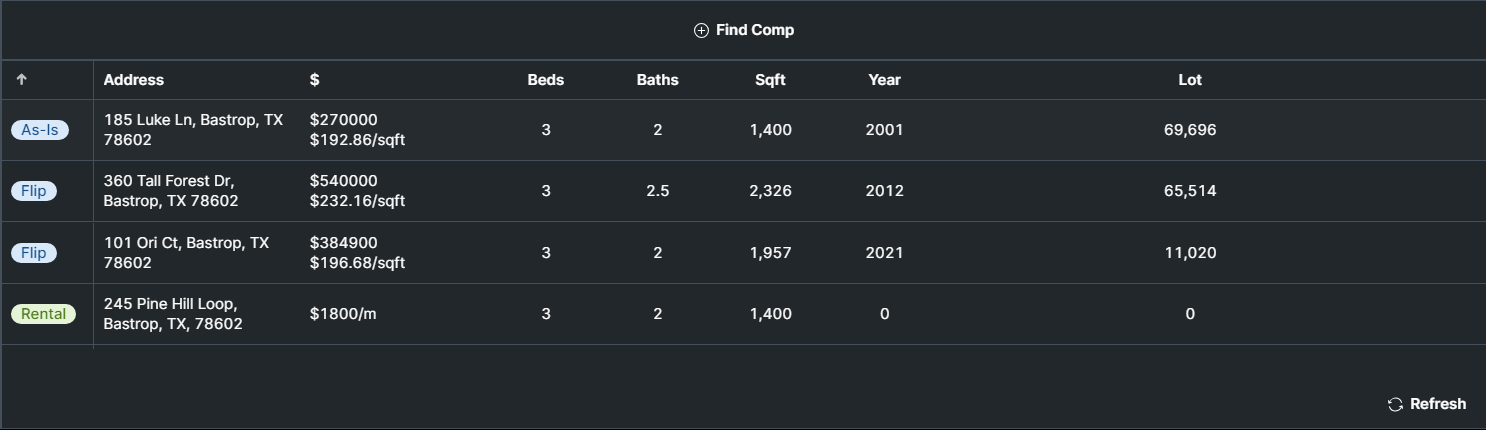
There are a few features worth mentioning here.
Table View
In the table, you can view the kind of comp on the left, as well as the address, the comp value, the number of beds, baths, SQFT on the property, the year build, and the lot size.
Refresh Button
When adding a comp or checking if comps have been updated by another team member, click the refresh button.
Find Comp
This button allows you to add comps through redfin, if you have the Frontdoor Comper Extension.
Redfin Comping
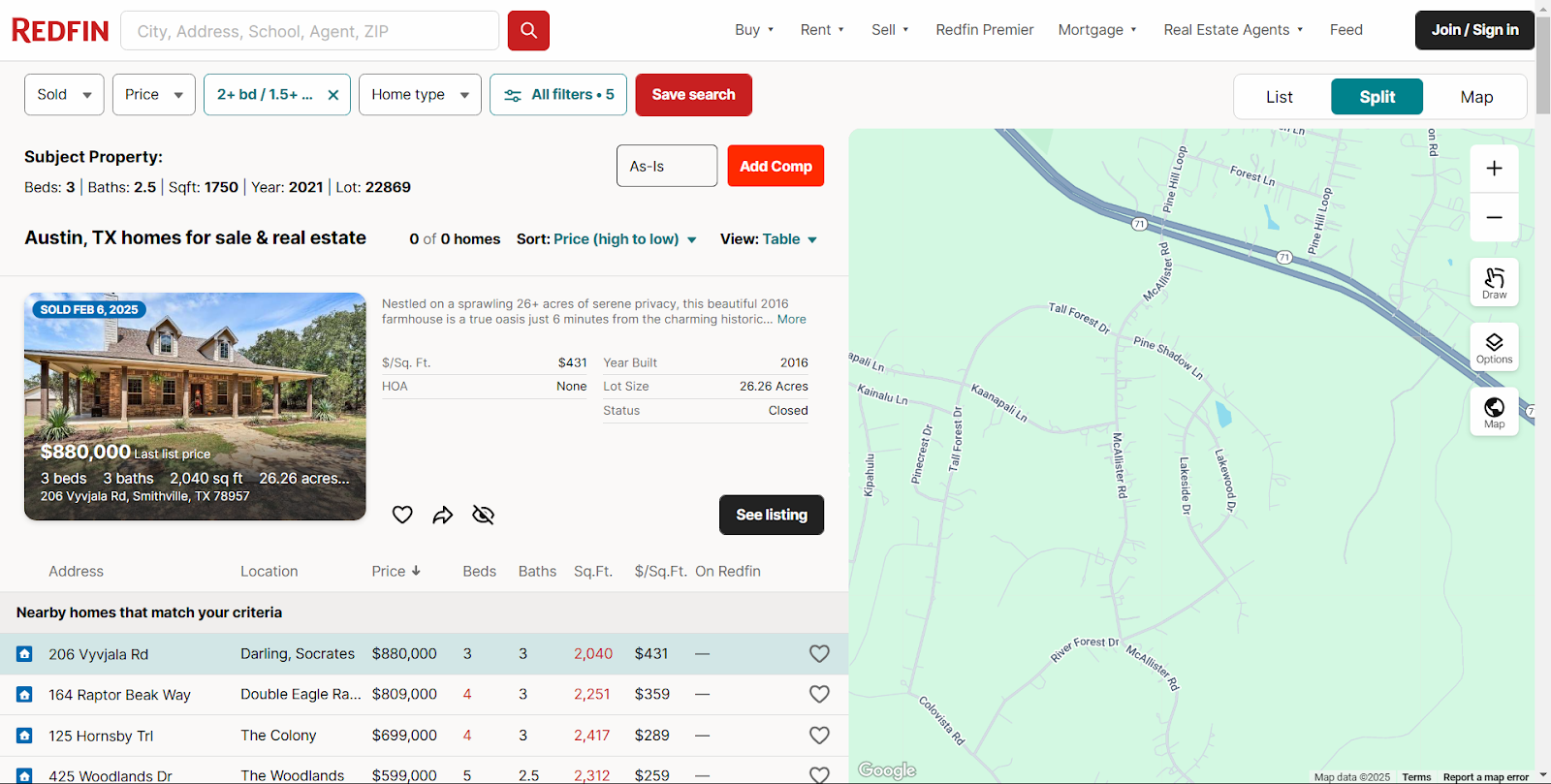
If you have the Frontdoor Comper Extension installed, clicking Find Comp will take you to a Redfin page to help you comp the property.
Comp List
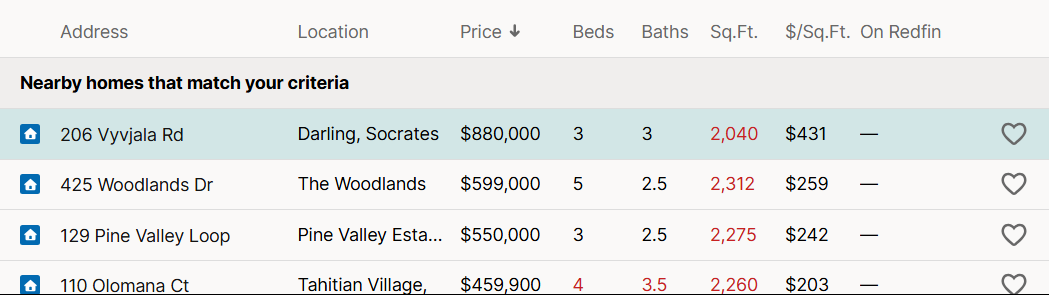
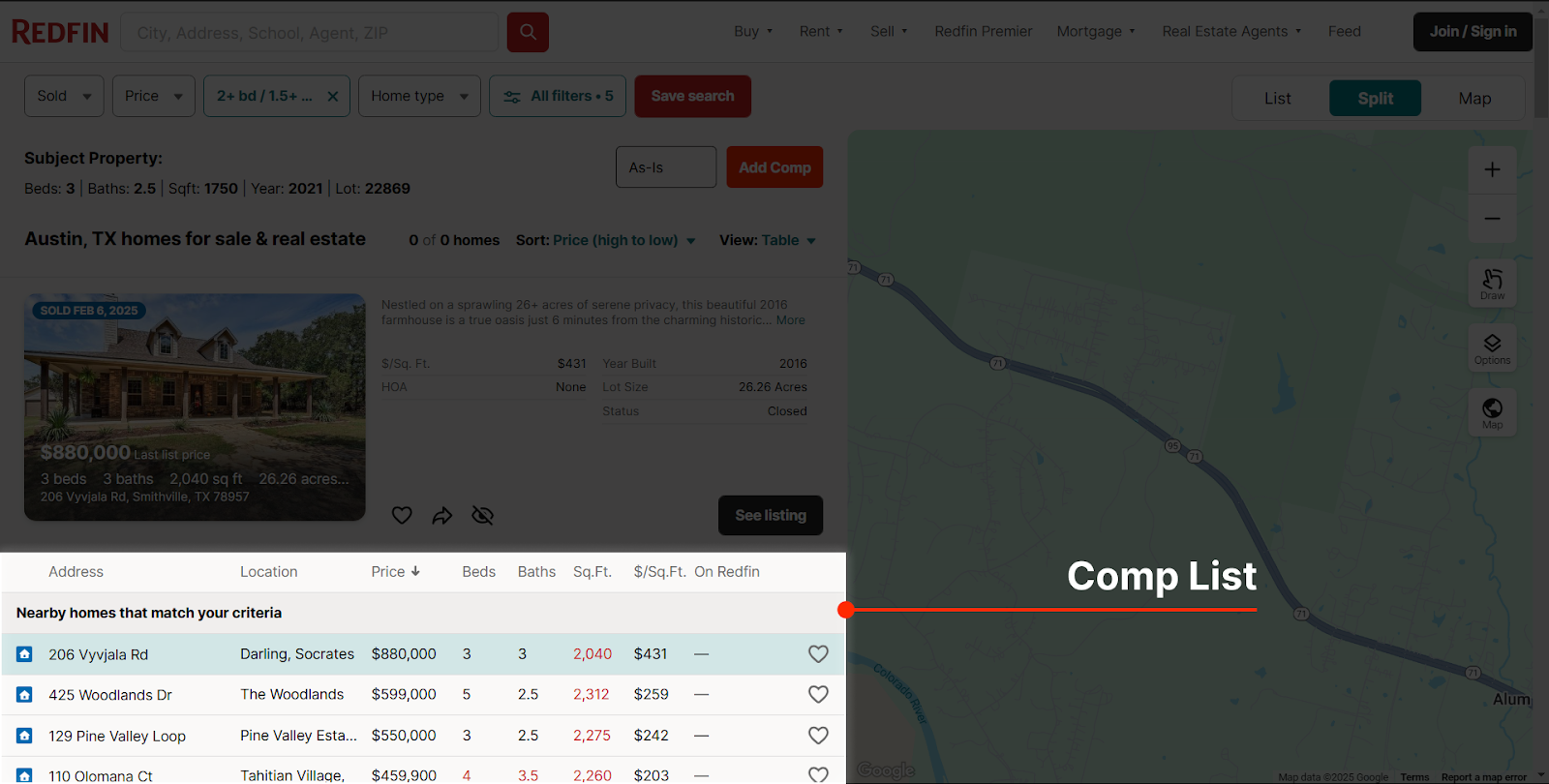 Effie automatically gathers comps that fit within a certain criteria of your subject property. You can see them listed in the table at the bottom, and any details which are different from the subject property are automatically colored red. You can select which comp you want to look at or add by clicking on it.
Subject Property Details
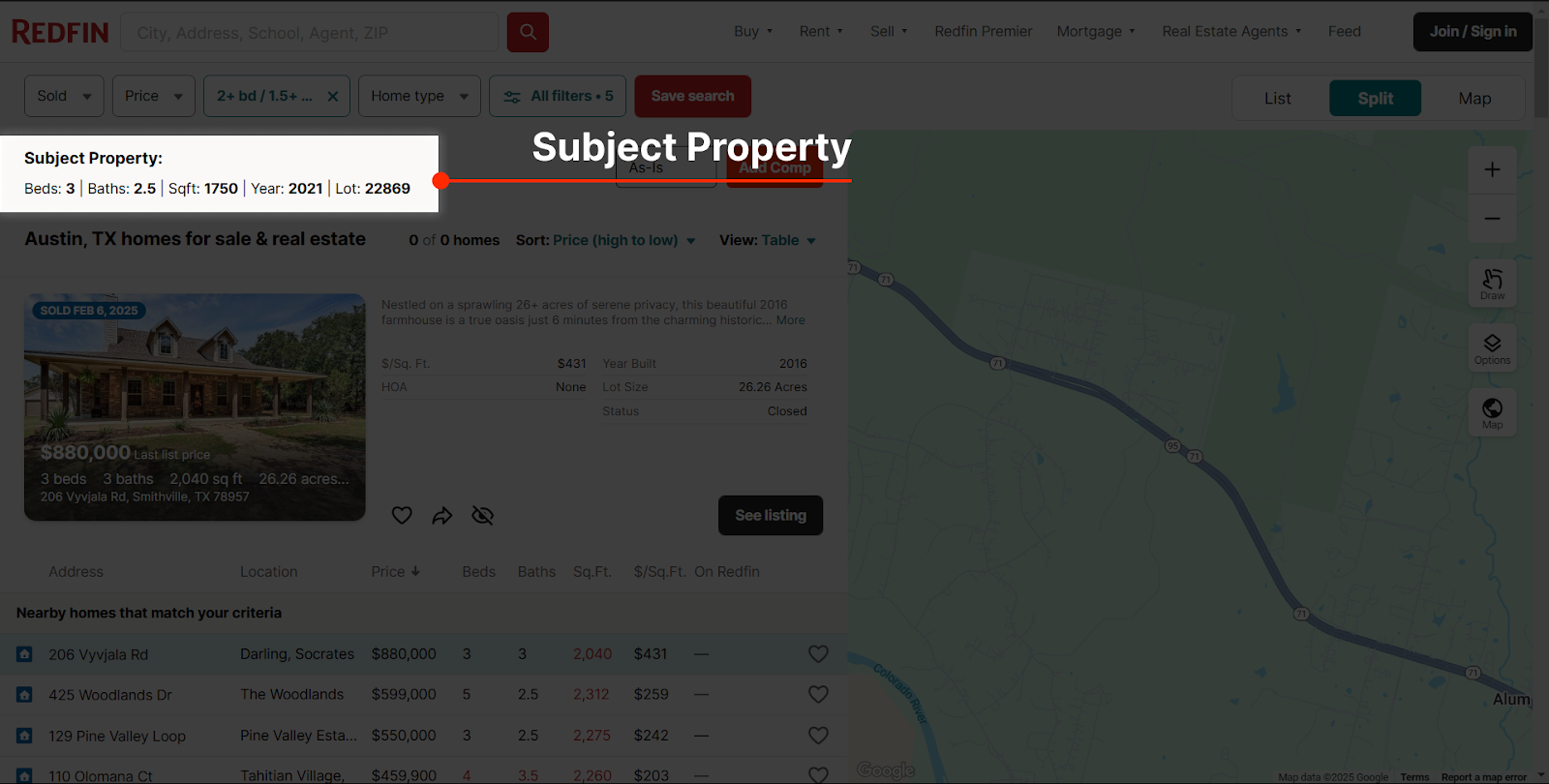 The Extension will keep the subject property’s details on the top left, so that you can easily reference it when looking for comps.

Add Comp
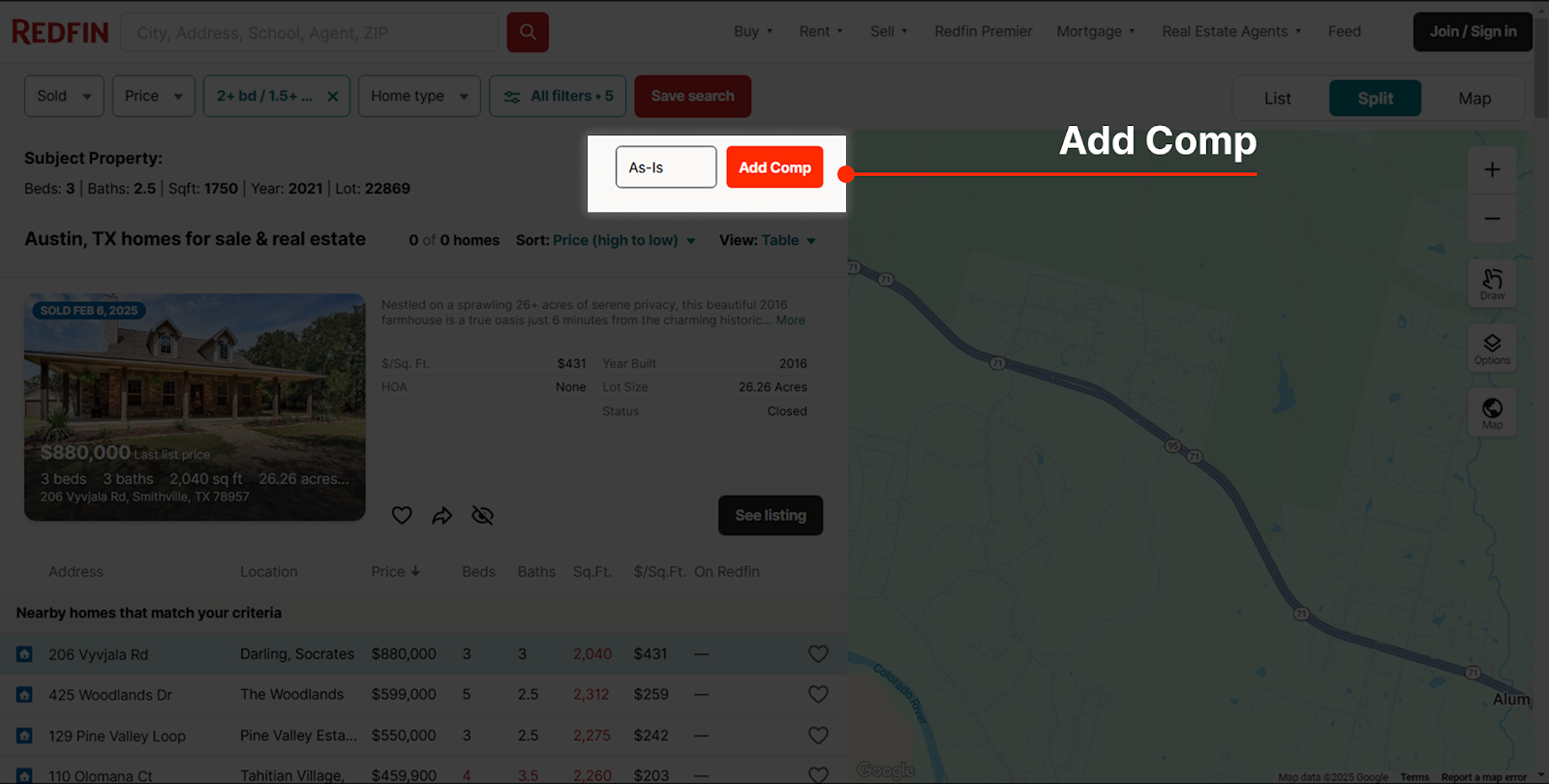 Once you have a comp selected in the comp list, choose the comp type here and click Add Comp to add it.
Seeing the Comp in Effie
Once you’ve clicked Add Comp, return to the Effie comp screen and click the Refresh button. Please be aware that adding a comp can take up to 20 seconds.
Adding a Comp from the Deal Pipeline Screen
To add a comp from the Deal Pipeline screen, simply select a deal to open the deal panel on the right.
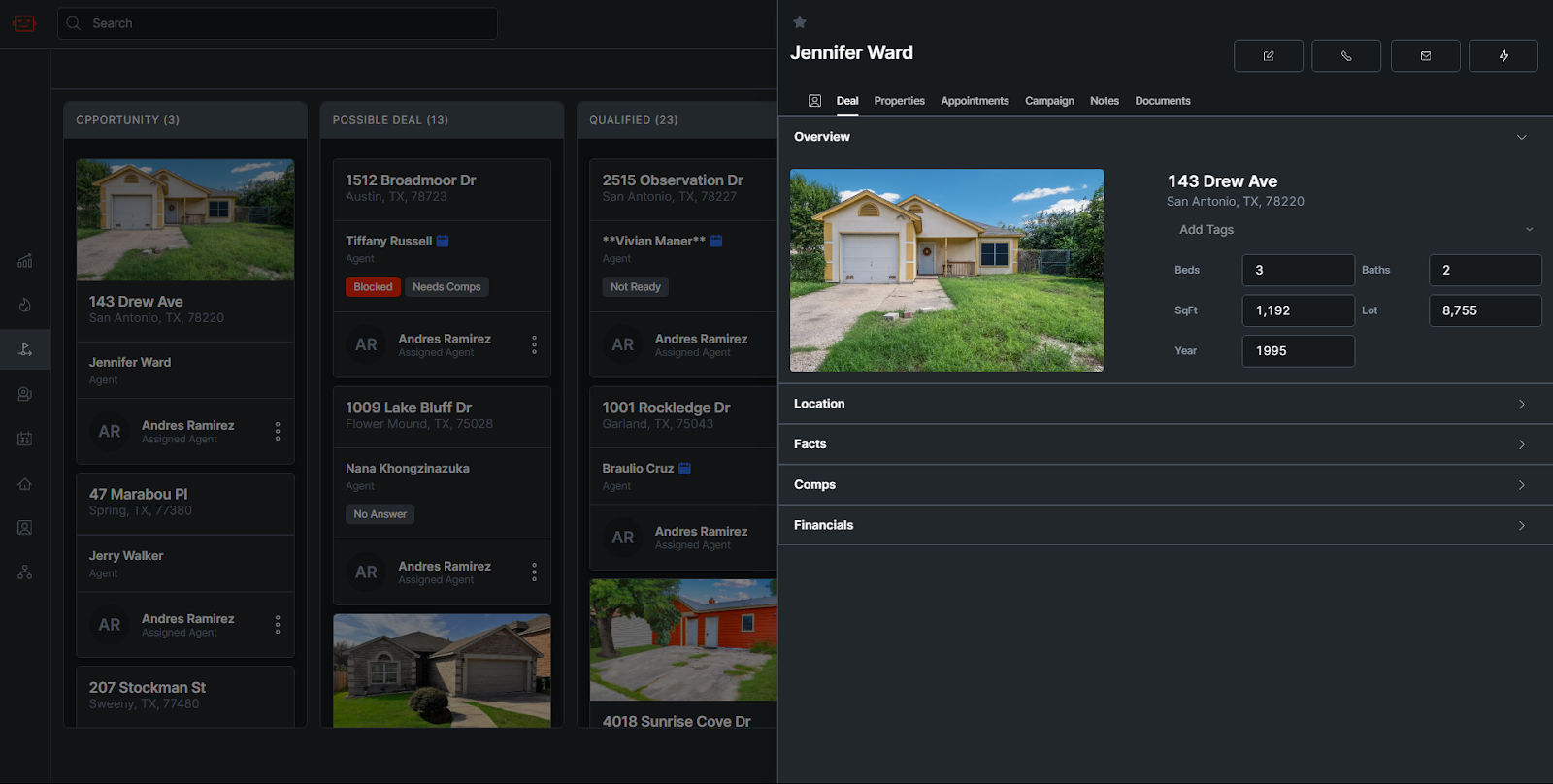
In this panel, click the 'Comps' section to expand the comps.
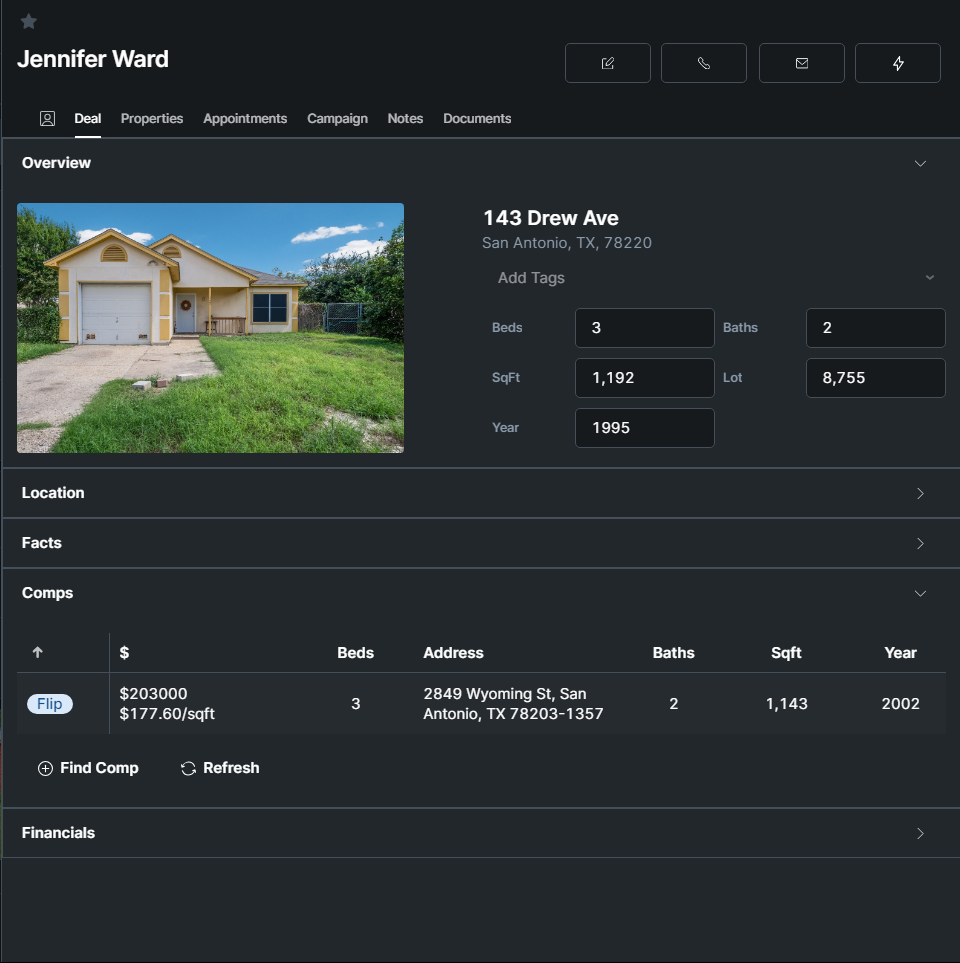
You can click 'Find Comp' from here, and follow the same process listed above.
Adding a Comp from the Lead Generation Screen
To add a comp from the Lead Generation screen, simply select a contact to open the contact panel on the right.
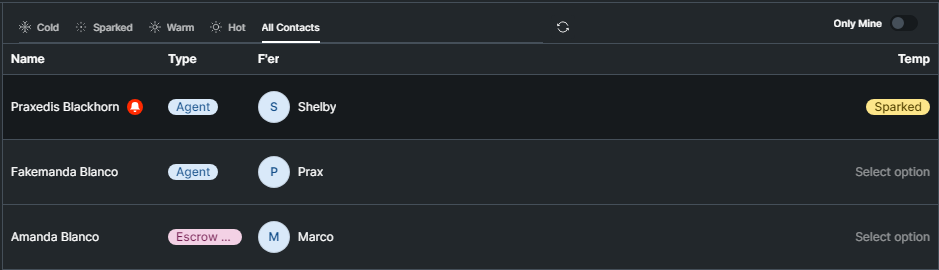
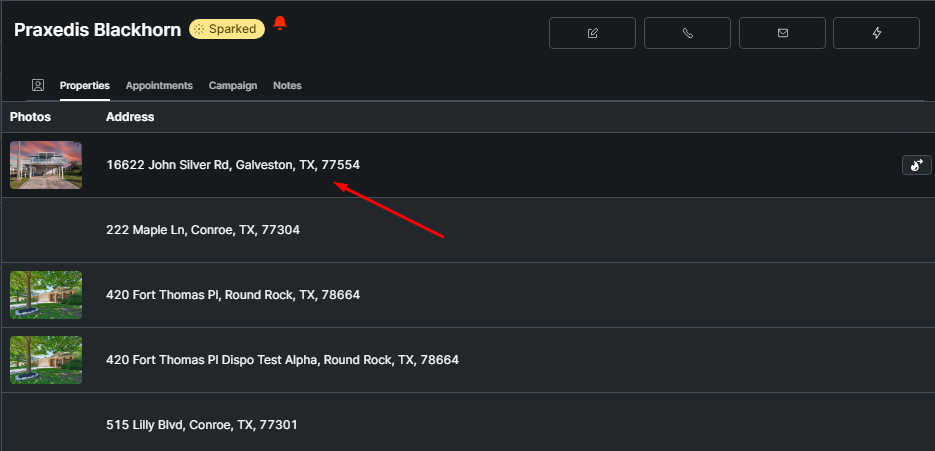
In this panel, click the 'Properties' tab to view their properties.

Double-click the property you want to comp.
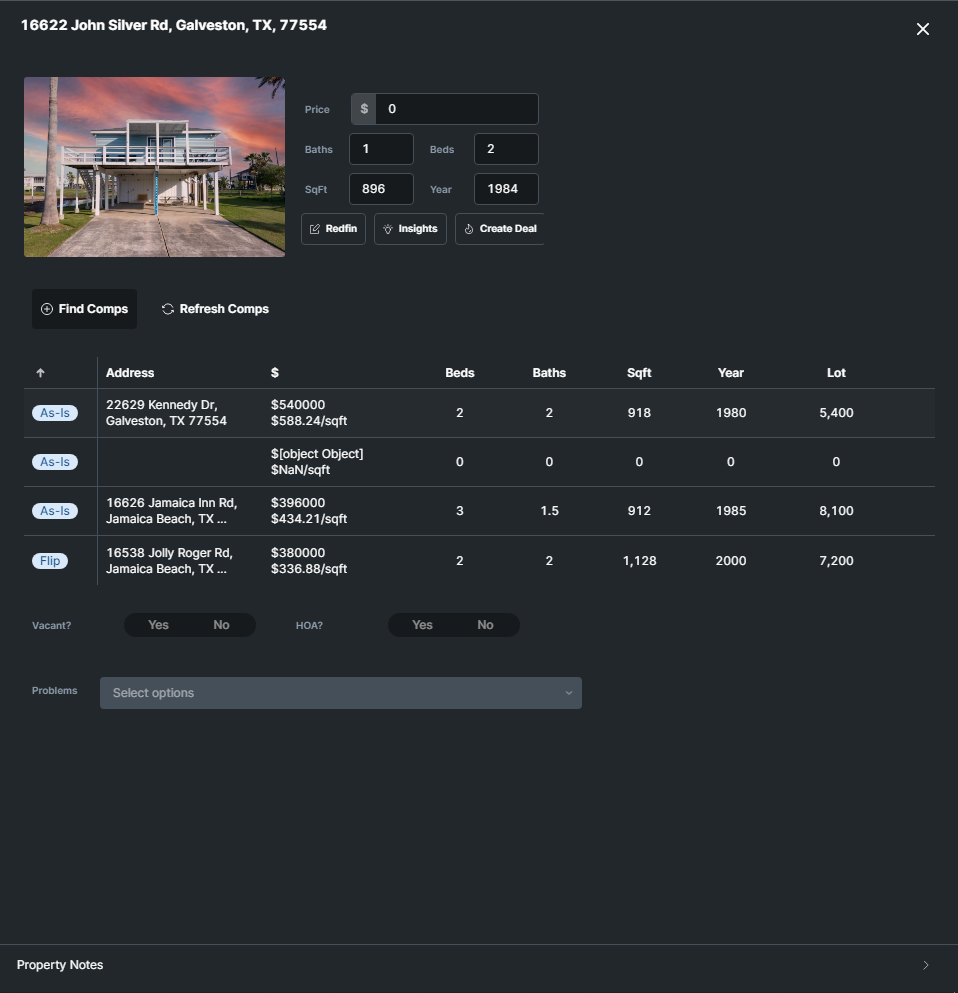
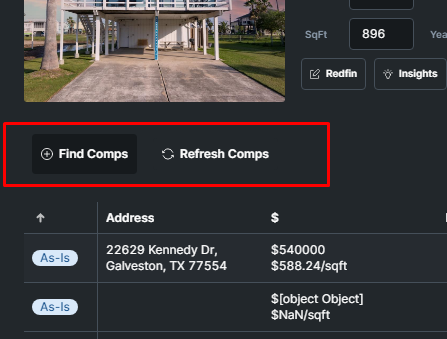
In this property detail view, you can click the 'Find Comps' button to add a comp, and the 'Refresh Comps' button to refresh once you've added one. Follow the same process listed above.