TUTORIAL
Campaigns
What is a Campaign?
A campaign is a series of communications, whether text, voicemail, or email, that are sent to a contact in a set order in order to achieve a particular goal.
The communications have delays in between them. The delay can be as small as a few seconds or as long as a few weeks.
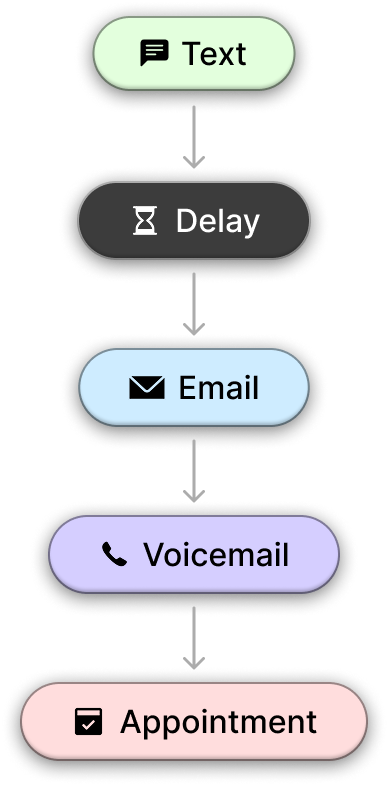
The current types of communications which are supported are:
- Text Messages
- Email Messages
- Automatic Voicemails
What are some Examples of Campaigns?
Campaigns are created to serve a particular goal. A few examples of campaigns might be:
- Need Photos
- Repeated requesting to an agent over a few weeks to get updated property photos
- Rejected Offer Follow-Up
- Following up with an agent a month after your offer was rejected
- Nurturing Seller Readiness
- Engaging a seller's agent to maintain interest until the seller is ready to sign a contract
Where are Campaigns in Effie?
You can create, view, and edit campaigns in multiple places in Effie:
- Lead Generation Screen
- Deal Pipeline Screen
- Campaigns Screen
- Properties Screen
- Contacts Screen
Campaign Variables
Campaigns in Effie have special {tags} called variables. These will be automatically replaced by the system when sending a message, so they can be personalized.
For example, this text: Hi {name}! This is {user} - I just wanted to follow up about my offer on {address}. I’m really interested in this property.
Would be sent to the contact like this: Hi John! This is Nathan - I just wanted to follow up about my offer on 137 Lakeside Dr. I’m really interested in this property.
The following variables are currently supported in Effie:
- User
- The name of the F’er who is assigned to the contact.
- Name
- The first name of the contact. When putting a property in a campaign, the first name of the primary contact is used.
- Address
- The street address of the property the campaign is connected to. For example 137 Lakeside Dr, Bastrop, TX 78602 would be written as 137 Lakeside Dr.
- User_Email
- The email address of the F’er who is assigned to the contact.
- User_Phone
- The phone number of the F’er who is assigned to the contact.
When creating a campaign message, think about ways to use these variables to customize your message effectively.
Putting a Property in a Campaign
When a contact is selected, you can view and change their current campaign using the contact panel on the right.
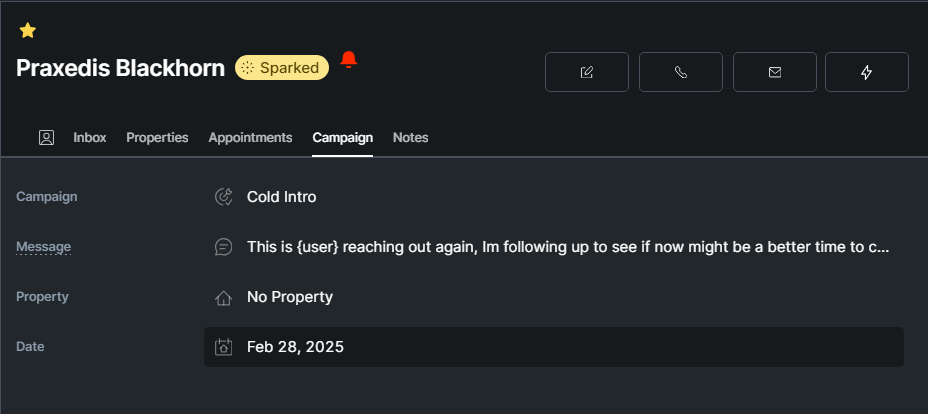
Here, you can view:
- Campaign
- The name of the campaign they’re in
- Message
- The next message the user is going to receive
- Property
- The property the campaign is associated with, if any. This address will be used in certain messages.
- Date
- The date the next message will be sent.
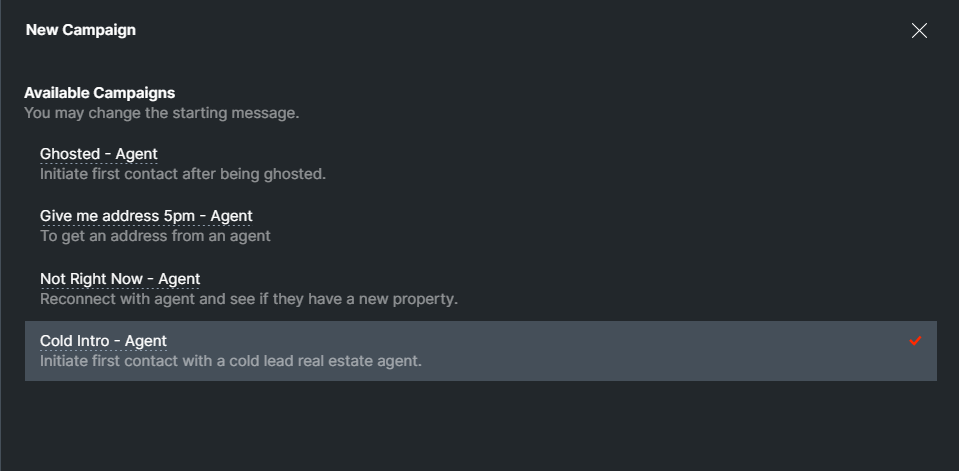
To put the contact in a new campaign, click the New Campaign button at the bottom.

On the next screen, select which campaign you want to put the contact into.
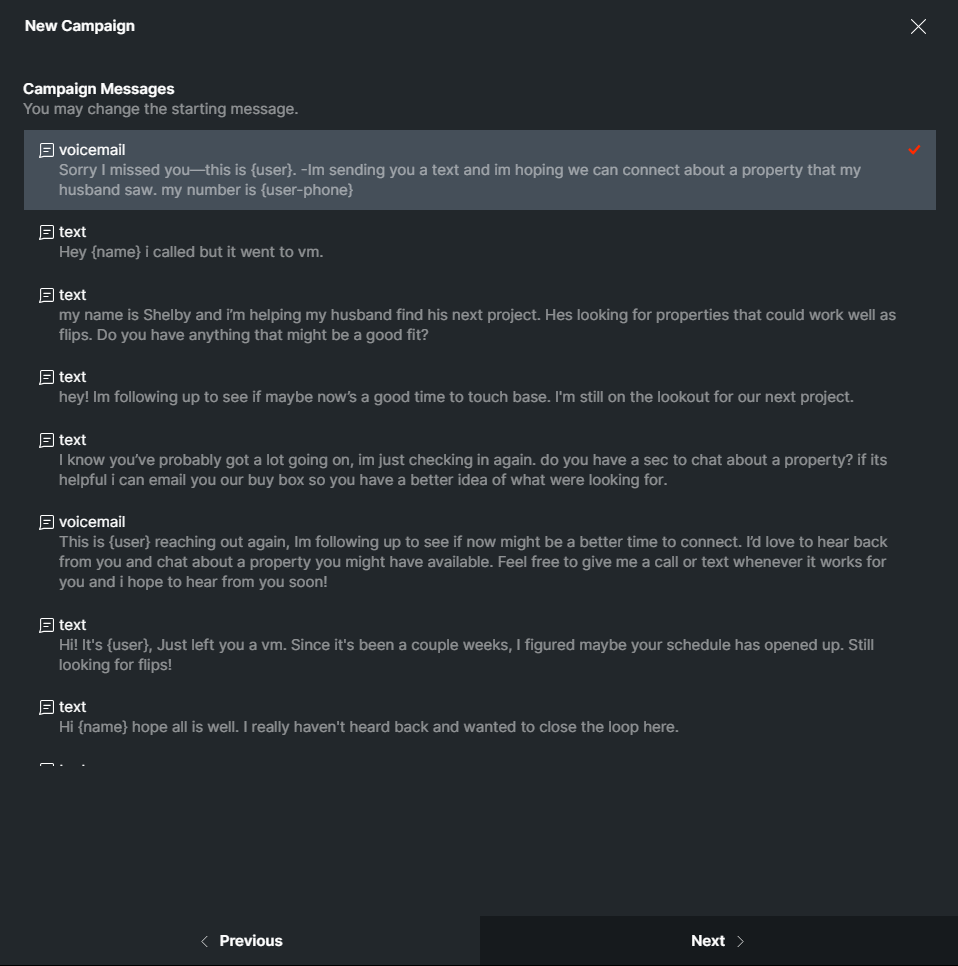
Effie will show you all the messages sent in the campaign. You can choose what message you want to start on, and Effie will skip to that part of the campaign.
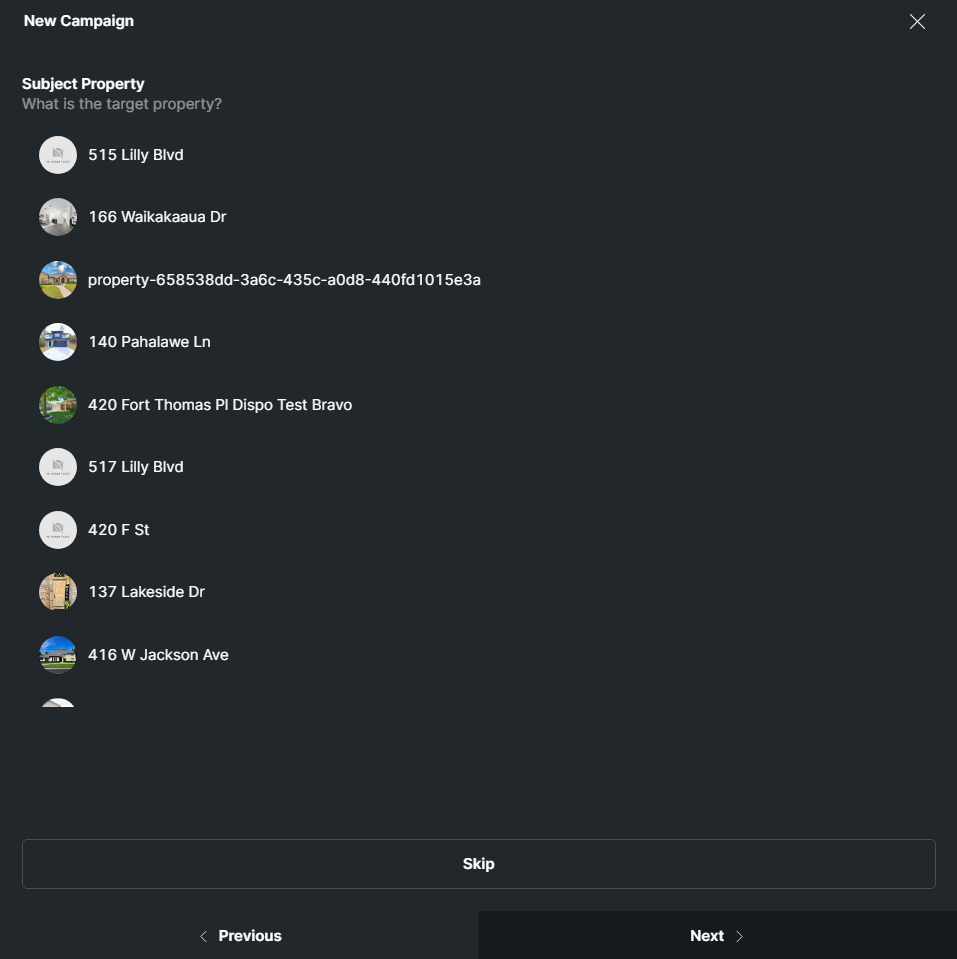
Then, select the property you want to connect to the campaign, so that the address tag can be populated. You can skip this step if you don’t want to connect it to anything.
Caution
Skipping property selection breaks the {address} tag! Be careful!
Finally, choose the date the campaign will start.
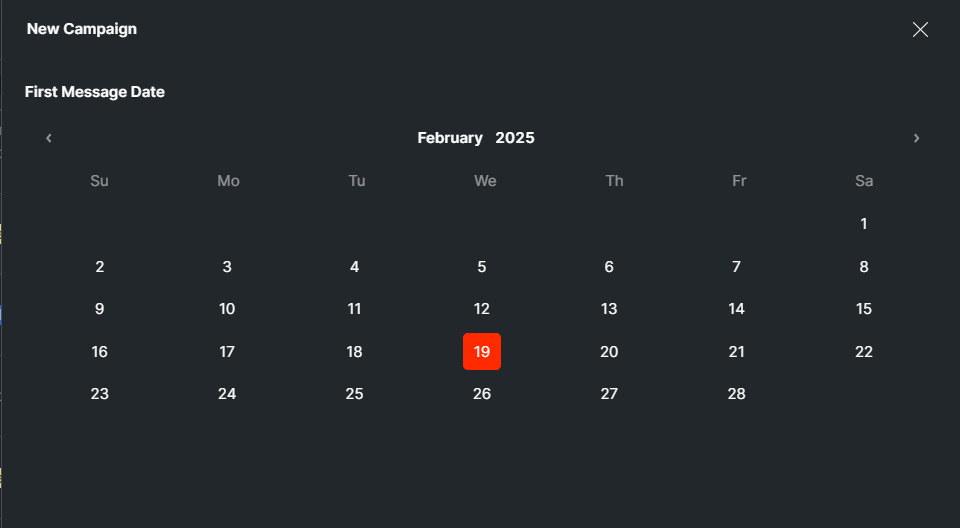
Click Start and the campaign will begin!
Editing Campaigns
You can edit campaigns in the Campaigns Screen.
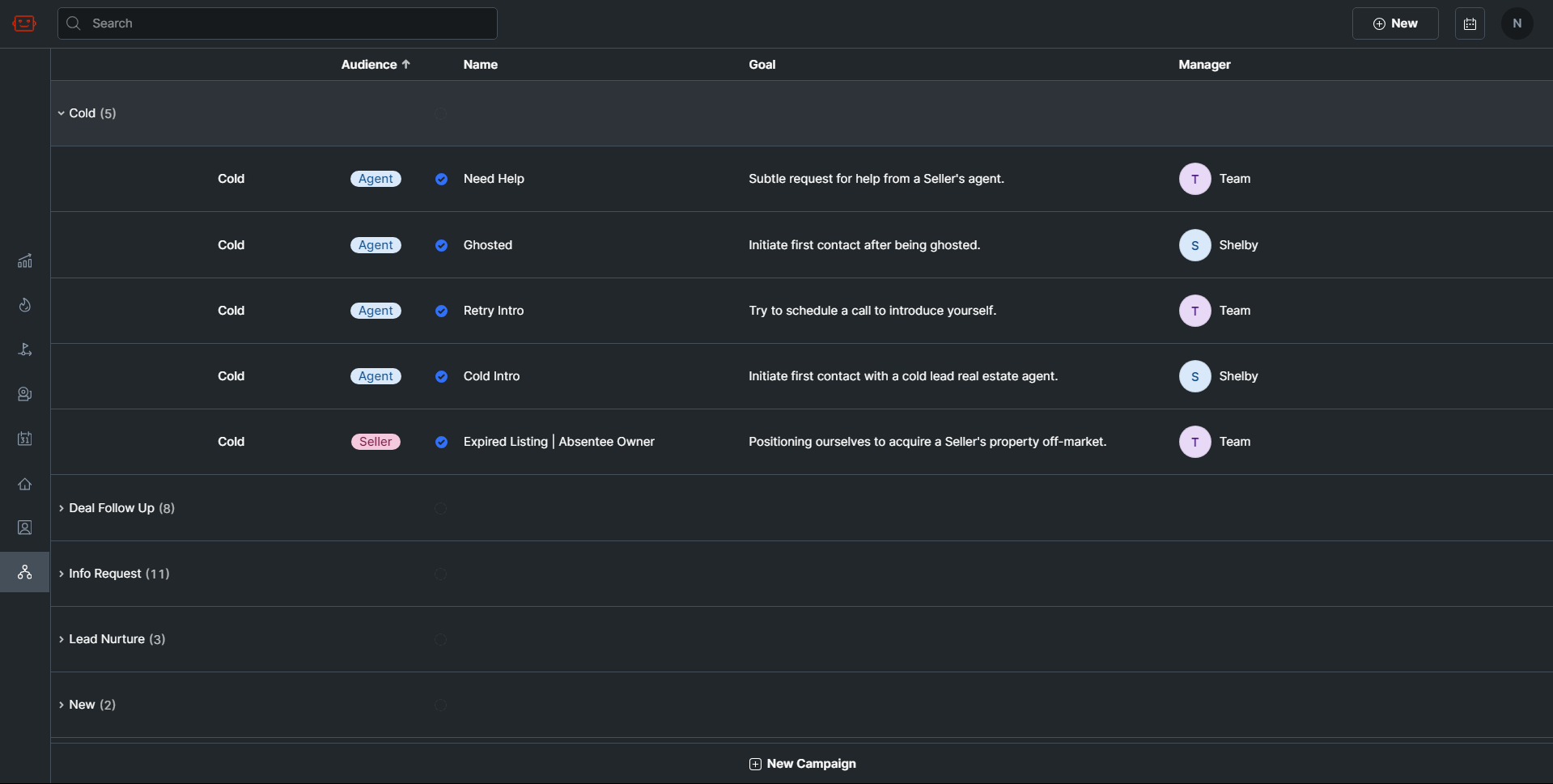
All current campaigns are listed here and categorized. You can change their category, audience type, campaign name, goal, and the campaign manager.
Editing or Creating a Campaign
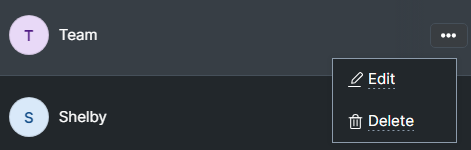
To edit an existing campaign, click the 3 dots on the right to edit the campaign.
To add a new campaign, click the New Campaign button at the bottom of the campaigns screen.

You’ll see a new pop up come onto the screen:
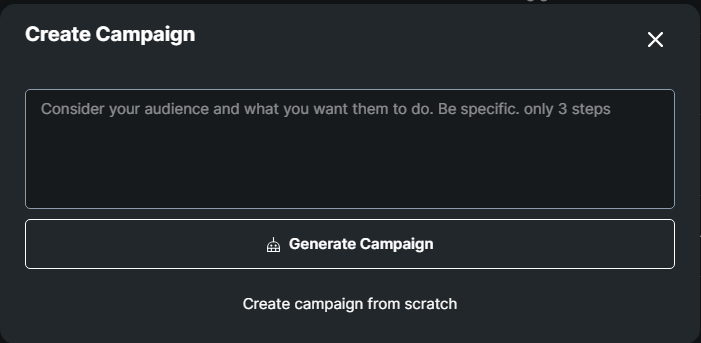
The text you enter here is used by Effie to create a campaign. State your goal and audience and what you want them to do. For example:
“Get agents to send us photos for the property that they haven’t sent yet. Stick to mostly texts”
Campaign Editor
Effie uses a modular system that allows you to create steps and separate them with delays.
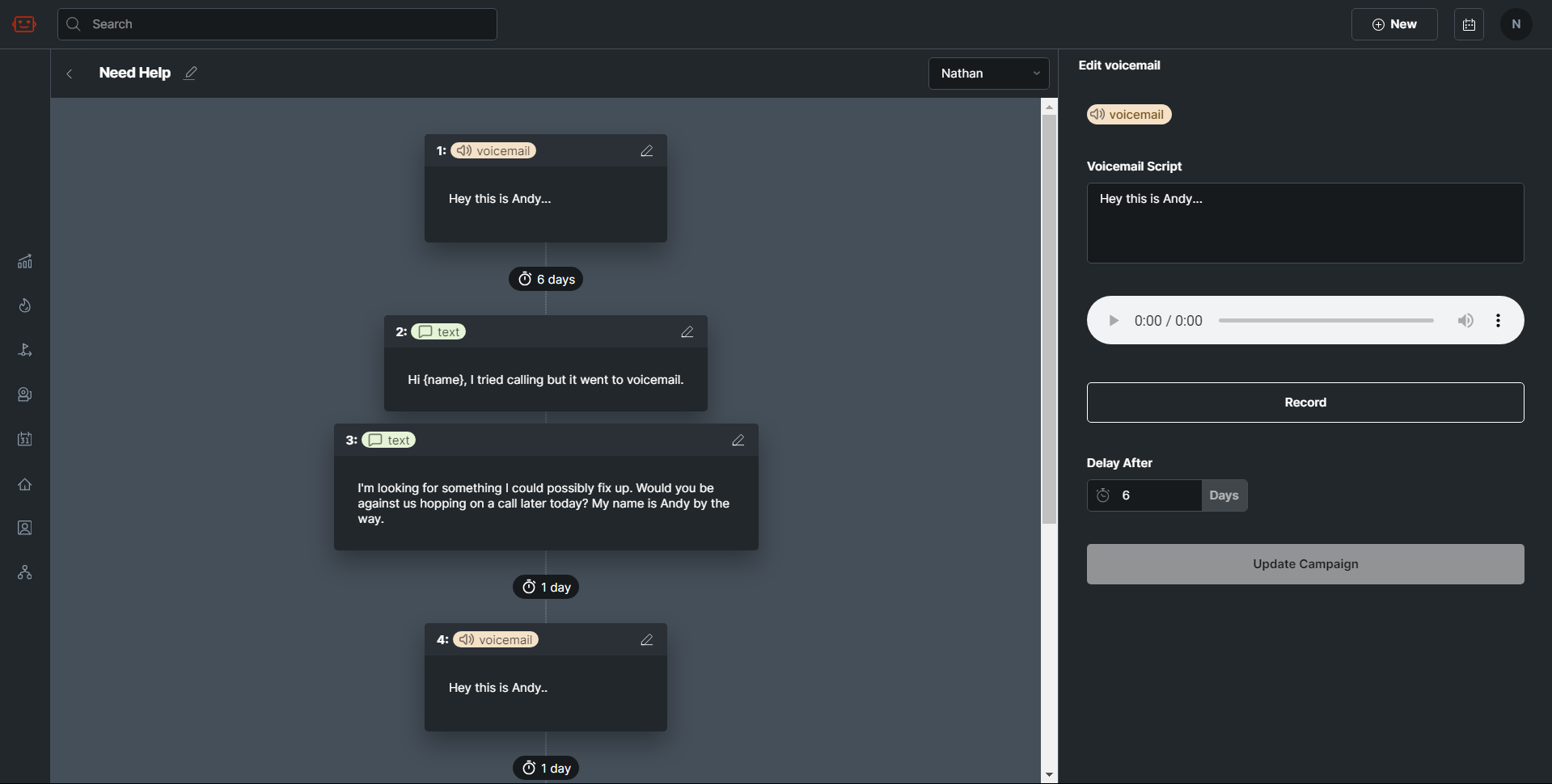
Message Step
Click a step to edit it. There are three types of messages:
- Text
- Voicemail
- Appointment
Text Messages
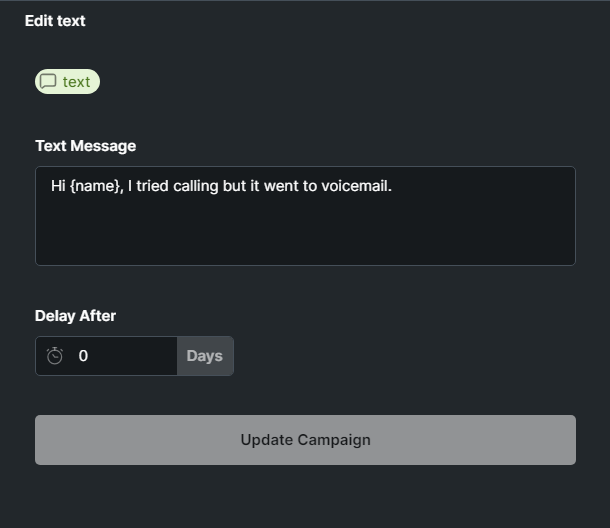
Write the text message that will be sent. Remember to use {variables} where appropriate.
Set the delay in days after the message. Set to 0 if you want no delay.
Voicemail
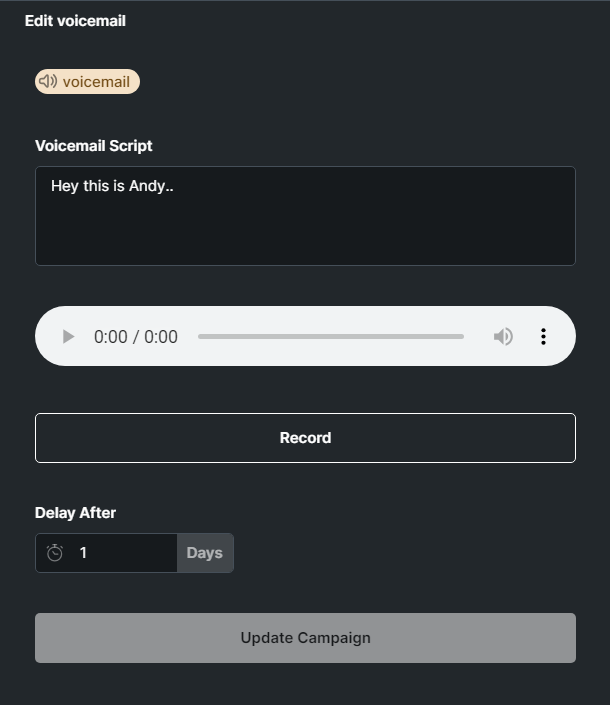
Write the voicemail script so that other users can know what’s being said in the voicemail message. Click the Record button to record yourself saying the voicemail. Be sure that the person who records the voicemail is the F’er that the voicemail is supposed to come from.
Set the delay in days after the message. Set to 0 if you want no delay.
Appointment
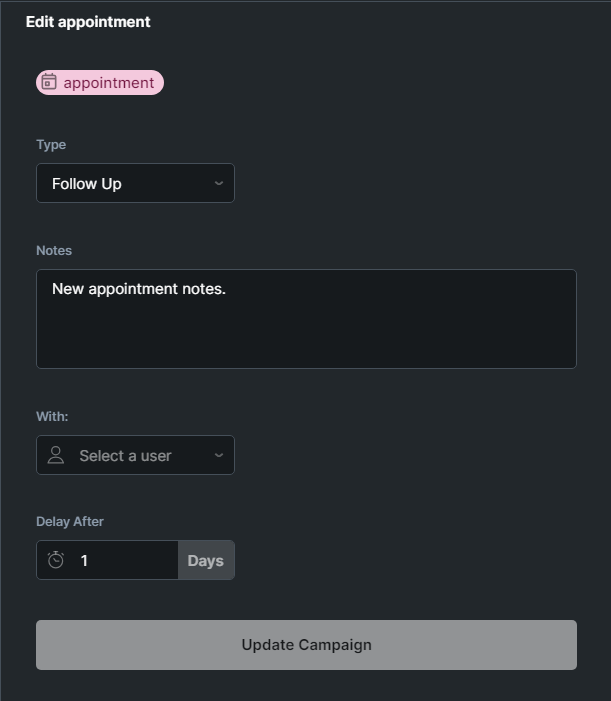
This will schedule an appointment with the contact and an assigned F’er. Set the type of appointment, the notes for the appointment and the F’er the appointment is with.
Set the delay in days after the appointment. Set to 0 if you want no delay.
Adding a New Step
At the bottom of the campaign builder, you can select what type of message you want to add.
